
Plan calls, meetings and tasks
Log the work you do for a contact or deal, plan the next step and see what's overdue.
An activity is one dated item of work linked to a contact or a deal: a call you made, a meeting next Tuesday, a task to send the VAT forms. You use activities to log what happened and plan what comes next. The CRM shows your open activities in one list and tells you when something is overdue.
Key ideas#
| Term | What it means |
|---|---|
| Type | The kind of activity, such as Call, Meeting, Email or Task. Each type has its own colour and icon. |
| Owner | The person who created the activity. The Admin column shows the owner. You can't change it later. |
| Status | Pending (still to do), Overdue (its end time has passed and nobody ticked it) or Completed. The Status filter calls Pending In Queue. |
| Follow-up | A new activity for the same contact or deal, named after the first one plus "- Follow-up". |
Add an activity to a contact or deal#
- Open the contact or the deal and click the Activities tab.
- Click Log Activity.
- Pick the Type.
- Type a name in Activity, for example "Call about VAT return". Add a Description if you need one.
- Set Start and End. The next section explains how they work.
- Click Create.
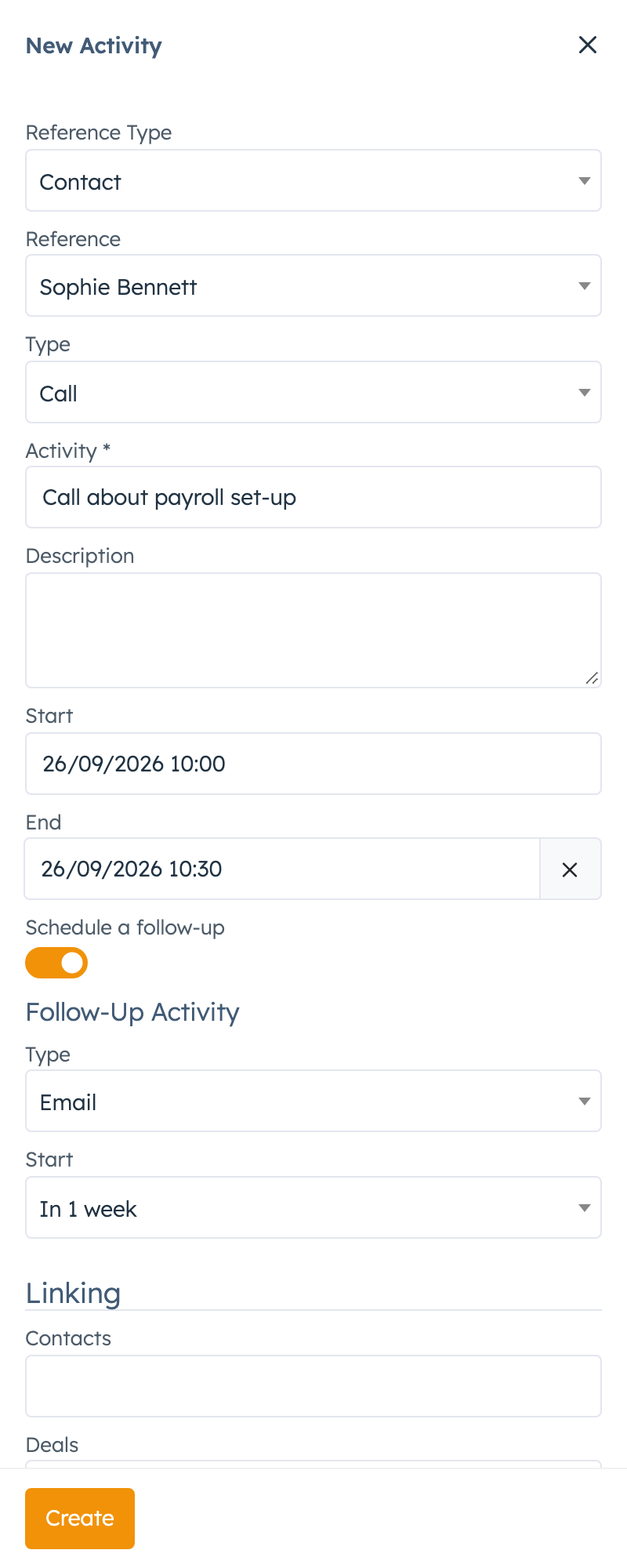
You can also add an activity from CRM > Activities > New Activity. First choose the Reference Type (Contact or Deal) and the Reference (which contact or deal).
Picking the type Email or SMS only labels the activity. The system doesn't send anything. The type Reminder also sets a reminder for you in the Reminders area at the Start time, sent by email. On a deal, set reminders from the deal's Reminders tab instead. See Deals.
Start, End and Overdue#
The form fills in Start with the current time and End with one hour later. Change both to what you mean:
- Something that already happened (a call that has ended): set Start and End to when it took place. Because both times are in the past, the CRM saves it as Completed.
- Something planned: set the real start and end, for example a meeting from 10:00 to 11:00 on Friday. It stays Pending until you tick it or its End passes.
The system checks for pending activities whose End has passed and marks them Overdue. If an activity has no End, it uses the Start. This check runs only while Enable The CRM Plugin is on in the CRM settings (see Settings). If you log a finished call and keep the default end, it turns Overdue an hour later and the system may email you about it.
Complete an activity and plan the next step#
On a contact's or deal's Activities tab:
- Tick the round box next to the activity. The CRM marks it Completed and opens the Follow-Up Activity panel.
- Pick the Type and the Start, for example In 1 week, or Custom to choose a date.
- Click Create. To skip the follow-up, close the panel instead.
The periods (In 1 day, In 1 week and so on) count from now. A follow-up has no end time.
You can also plan a follow-up while you create an activity. Switch on Schedule a follow-up, pick its Type and Start, and click Create. The CRM creates both activities. Here the period counts from the new activity's End, or its Start if there is no end, as long as that time is still ahead. Otherwise it counts from now.
The Follow-Up icon on an activity opens the same panel without completing it.
Link colleagues and other records#
The Linking section of the form has four lists: Contacts, Deals, Admins and Organizations. An activity you link to a contact, deal or organisation also shows on that record's page. Colleagues you add under Admins get a notification in the system (the bell) when you create or change the activity. They don't get the overdue emails. Those go to the owner only.
The form fills in Organizations with the contact's organisations for you.
Clear Activities on a contact or deal deletes all its activities. It also deletes activities on other contacts and deals that list this one under Linking. You can't undo it.
See all your activities#
Open CRM > Activities. You need the Activities permission. The list shows pending and overdue activities for the contacts and deals you can see, newest first. Completed ones are hidden until you change the Status filter.
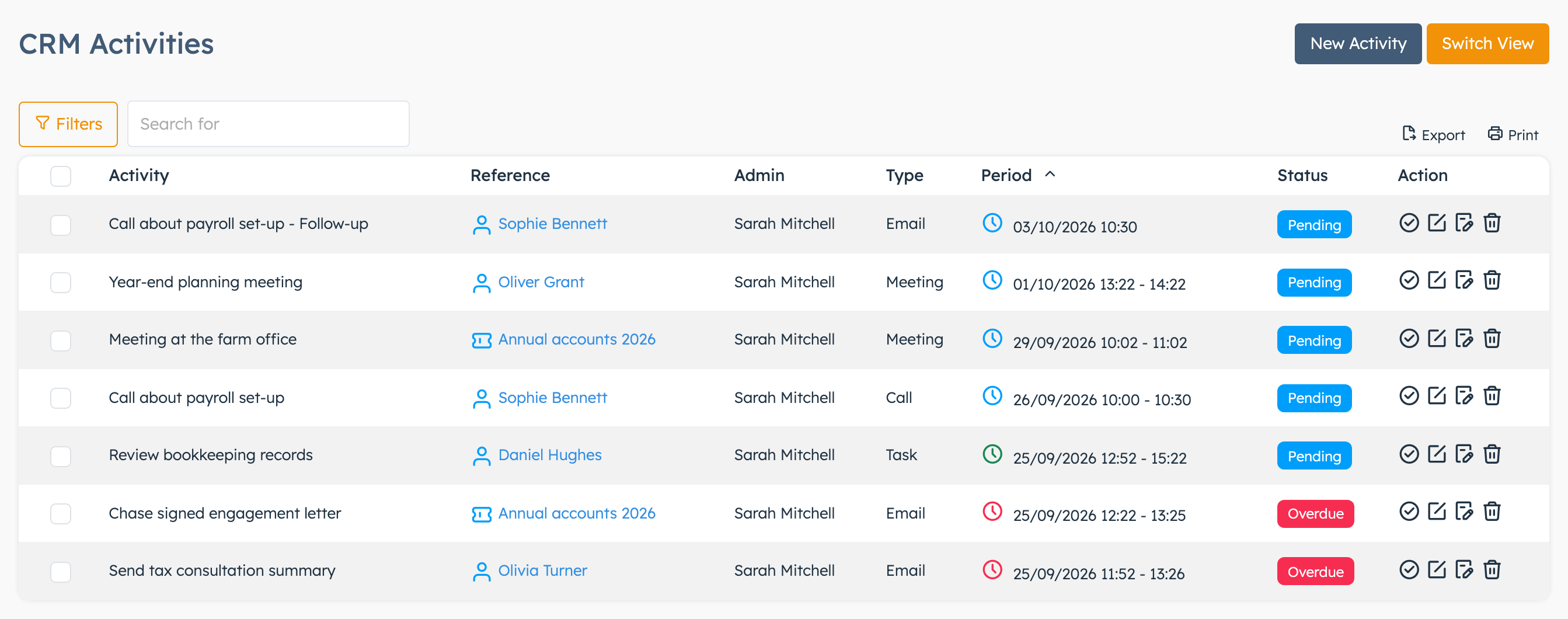
- Filters adds filters such as Period (Past, Happening Now, Upcoming), Contact, Deal, Status and Type. Clear Filters resets them.
- Switch View shows a timeline instead of a list, grouped by person and then by contact or deal. Use Time Scale to zoom in or out and Today to jump back to now. You can't drag items on the timeline.
- Export makes a PDF of the list as filtered. Print opens a page ready for printing.
Each row has icons to Mark as Completed, Edit, Add Note and delete (the bin). After you mark an activity completed, the CRM offers a follow-up. Close the panel if you don't need one.
To move several activities at once, tick them, click Reschedule and confirm. Choose a number of Hours or Days, or Custom for a date, and click Reschedule. Hours and days count from now, so 2 Days puts every ticked activity two days from today. Each activity keeps its length.
Add a note to an activity#
- Click Add Note on the CRM Activities list, or New Note on a contact's or deal's Activities tab.
- Give the note a Title and write the text.
- Click Post.
The note shows under the activity. It also appears on the contact's or deal's Notes tab.
Emails about overdue and upcoming activities#
The system can send the owner of an activity two kinds of email, while Enable The CRM Plugin is on in the CRM settings:
| What it lists | |
|---|---|
| Overdue Activities | Your activities that have gone overdue since the last check, with links to them. While they stay overdue, a reminder follows at most once a day. |
| Starting Activities | Your activities that start within the next hour. |
Only the owner gets these emails. To switch them on or off:
- Click your name in the sidebar and choose Profile.
- Open the Notifications tab.
- In the CRM section, tick or untick Overdue Activities and Starting Activities.
- Click Save.
Activity types and extra fields#
Activity types are the choices in the Type list. Your system administrator manages them under CRM > Settings > Activity Types. Ask them if you need a new type or extra fields. The built-in types (Call, Meeting, Email and the rest) can't be deleted.
A type can carry its own extra fields. For example, a "Site visit" type could ask for the address and the people present. Pick that type in the form and its fields appear under their group name. Some groups show a + link to add another value, or another set of the same fields, for example one per person at the meeting. You can add files to a file field only after you create the activity: open it again with Edit. The values show under the activity on the contact's or deal's Activities tab.
| Setting | What it does | When to change it |
|---|---|---|
| Color and Icon | How the type looks in lists. | To tell types apart at a glance. |
| Apply To | All, Contacts or Deals: which forms offer the type. Default All. | When a type only makes sense for deals, or only for contacts. |
| Priority | The type's place in the Type list. Lower numbers come first. | To put common types at the top. |
| Custom Fields | The extra fields that appear for this type. The fields themselves are set up first in the system's custom fields area. | When the type needs more details. |
Deleting an activity type hides every activity of that type. They disappear from lists, tabs, exports and emails. Before you delete a type, filter the CRM Activities list by that Type, with Status set to Any, to check nobody has used it.
Good to know#
- Mark as Pending on an activity whose end has passed makes it overdue again at the next check, and the owner gets the overdue email.
- The extra field values don't appear on the CRM Activities list, the export or the print.
- Deleting an activity keeps its notes on the contact's or deal's Notes tab.
- On a ticket, a user profile or an organisation, the activities tab lets you complete and edit activities. To delete them or add notes, open the contact or deal.