
Send proforma invoices
Send a customer a proforma before the real invoice, then turn it into an invoice with its official number.
A proforma invoice shows the customer what they will pay before you issue the real invoice. Firms use it to ask for payment up front, or to let a customer approve the amount first. Once the customer pays or agrees, you turn the proforma into a real invoice, or let the payment do it for you.
You need the Invoices permission to see these pages.
Key ideas#
| Term | What it means |
|---|---|
| Proforma invoice | A separate document in CRM > Proforma Invoices. It keeps a temporary number such as PROFORMA-57 and never gets an official invoice number. |
| Invoice | The document in CRM > Invoices. It gets the next official number from your invoice sequence. |
| Numbering status | The status at which an invoice gets its official number: Unpaid, Partially Paid or Paid. Your firm picks it in the CRM settings under Generate next invoice number on status. See Invoice numbering. |
Proforma Invoices list and Invoices list#
You will see PROFORMA- numbers in both lists. They mean different things.
- Proforma Invoices holds proforma documents only. Each one keeps its
PROFORMA-number for good, even after you turn it into an invoice. - Invoices holds real invoices. An invoice that hasn't reached your numbering status yet also shows a temporary
PROFORMA-number. It is still a normal invoice. Once it reaches the numbering status, the system replaces the temporary number with the next official one.
Say your firm numbers invoices on Paid. You issue an invoice and set it to Unpaid. It shows as PROFORMA-112 in the Invoices list until you record full payment, then it gets your next number, for example INV-00045. The PROFORMA- part comes from the Proforma Invoice Number Prefix setting.
Both lists have the same filters and columns. In the proforma list, the row menu offers Export PDF, Duplicate and, for drafts, Delete.
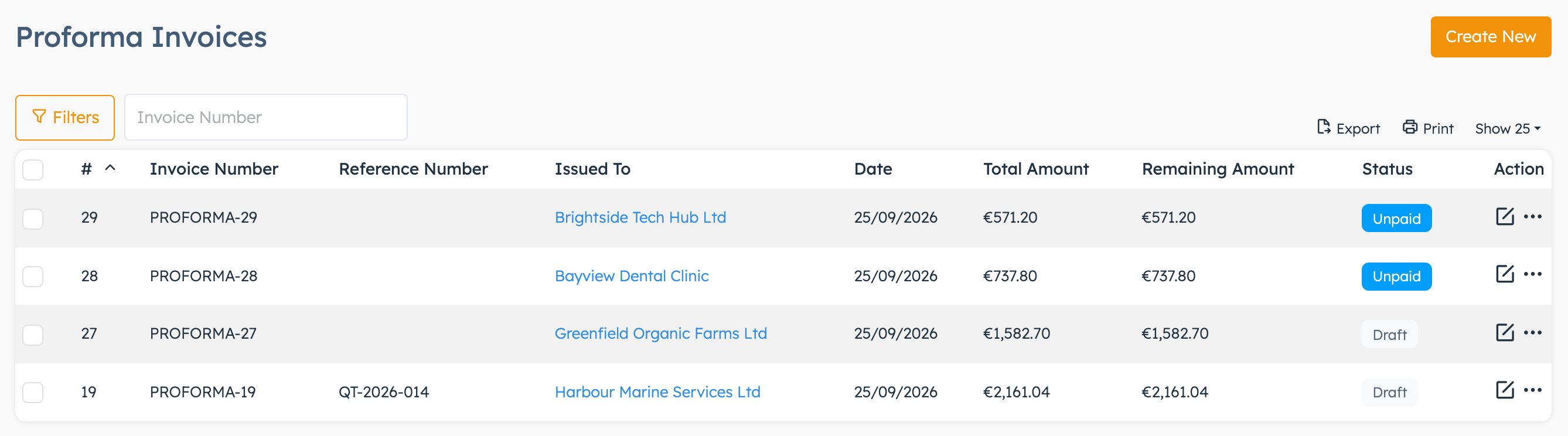
Create a proforma invoice#
- Open CRM > Proforma Invoices and click Create New. The system creates a draft and opens it. (New Proforma Invoice on the CRM home page does the same.)
- Under Proforma Invoice Information, pick Issued By if your firm has business profiles.
- Set Issue To to Organization, User or Custom and choose the customer. The billing details fill in.
- Check the Proforma Invoice Date and Due Date.
- Add lines: search for a product in Custom Product and click +, or type into the empty line. Lines save as you type.
- Click Calculate Taxes to fill in the VAT rates.
- Click Update.
The editor works like the invoice editor. Invoices explains lines, discounts and totals in detail.
Send a proforma to the customer#
The system only sends proformas that are out of Draft.
- Under Proforma Invoice Information, set Status to Unpaid and click Update.
- Click Send to Customer at the top of the page.
- Choose Email or SMS.
The email goes to the organisation's primary contact, or to the user you issued it to. Proformas issued to a Custom customer get no email. The SMS goes to the Mobile number in the billing details and needs your firm's SMS service set up. The page reloads without a confirmation message.
If your firm numbers invoices on Unpaid, step 1 creates the real invoice as soon as you click Update, and the invoice takes the next official number. To send a proforma without that, keep it in Draft, click Export PDF and attach the file to your own email. The PDF then shows the status Draft, unless your administrator switches off Include Invoice Status on Invoice (Invoice PDFs).
Turn a proforma into an invoice#
You can let the status do it, or use the button.
By status. The system creates the invoice for you once the proforma reaches your numbering status, and gives the invoice its official number. This happens when you change the proforma's Status and click Update, or when a payment brings it to that status.
By button.
- Open the proforma.
- Click Create Invoice at the top of the page.
- Click Yes. The message "Invoice generated" appears and the button now reads View Invoice.
The new invoice copies the proforma's customer, lines, totals and status, and any payments on the proforma move to it. It starts with a temporary PROFORMA- number and gets its official number once it reaches the numbering status.

After that, the two documents stay linked. The invoice shows a View Proforma button at the top of its page. When you change the status on one and click Update, the system copies it to the other. Once the invoice has its official number, you can't edit the proforma any more.
Proformas from a business profile need one extra step. Once a proforma has its invoice, give the invoice its number on its own page: click View Invoice, set Status and click Update. A status change on the proforma, or any payment, takes the number from your main company's sequence and sets the invoice date to today.
Record a payment on a proforma#
- Open the proforma. It must be out of Draft.
- Click Add Payment at the top of the page.
- Check the Amount. It starts with the amount still to pay.
- Pick a Payment Method or a Payment Gateway (one of the two).
- Check the Transaction Date and click Add Payment.
The status moves to Partially Paid or Paid. If that is your numbering status, the system creates the invoice, moves the payment to it and gives it its official number from your main company's sequence. The invoice date becomes today. The page reloads with "Payment added and Invoice published". If the proforma already has an invoice, the system records the payment on the invoice. More on payments in Invoices.
Good to know#
- Adding a stock-tracked product with + takes it off stock at once, on a proforma too. Turning the proforma into an invoice doesn't take it off a second time. See Products.
- Duplicate in the row menu makes a new draft copy with the same dates. Change the dates on the copy.
- You can delete a proforma only while it is in Draft.