
Issue documents from another company
Add a second company or branch, with its own name, logo, VAT number and invoice numbers.
A business profile is another company or branch that your firm issues documents from. Say you run an accounting practice and a separate payroll company from the same system. Each one needs its own name, VAT number, logo and invoice numbers. You pick the company on each invoice, proposal or credit note in Issued By.
If you issue everything under one company, you don't need business profiles. Fill in your Company Information settings and you're done.
You need the Business Profiles permission to see this page.
Key ideas#
| Term | What it means |
|---|---|
| Main company | Your own firm, with the details from the Company Information settings. Every new document starts on it. It doesn't appear on the Business Profiles page. |
| Business profile | An extra company or branch, with its own address, VAT number, logo, tax profile and number sequences. |
| Issued By | The field on a document where you pick which company issues it. It only shows once you have at least one business profile. |
Add a business profile#
- Go to CRM > Settings > Business Profiles and click Create New.
- Under Business Address, type the Name and the address.
- Under Tax Details, pick the Tax Profile and type the VAT Number and Tax Number.
- Under Contact Details, type the Email. Add a phone, mobile and website if you want them on documents.
- Under Invoice Generation Settings, fill in all four numbering fields. See Give the company its own numbers.
- Under Business Profile Image, upload the logo.
- Click Save. The message "Business Profile created" appears.
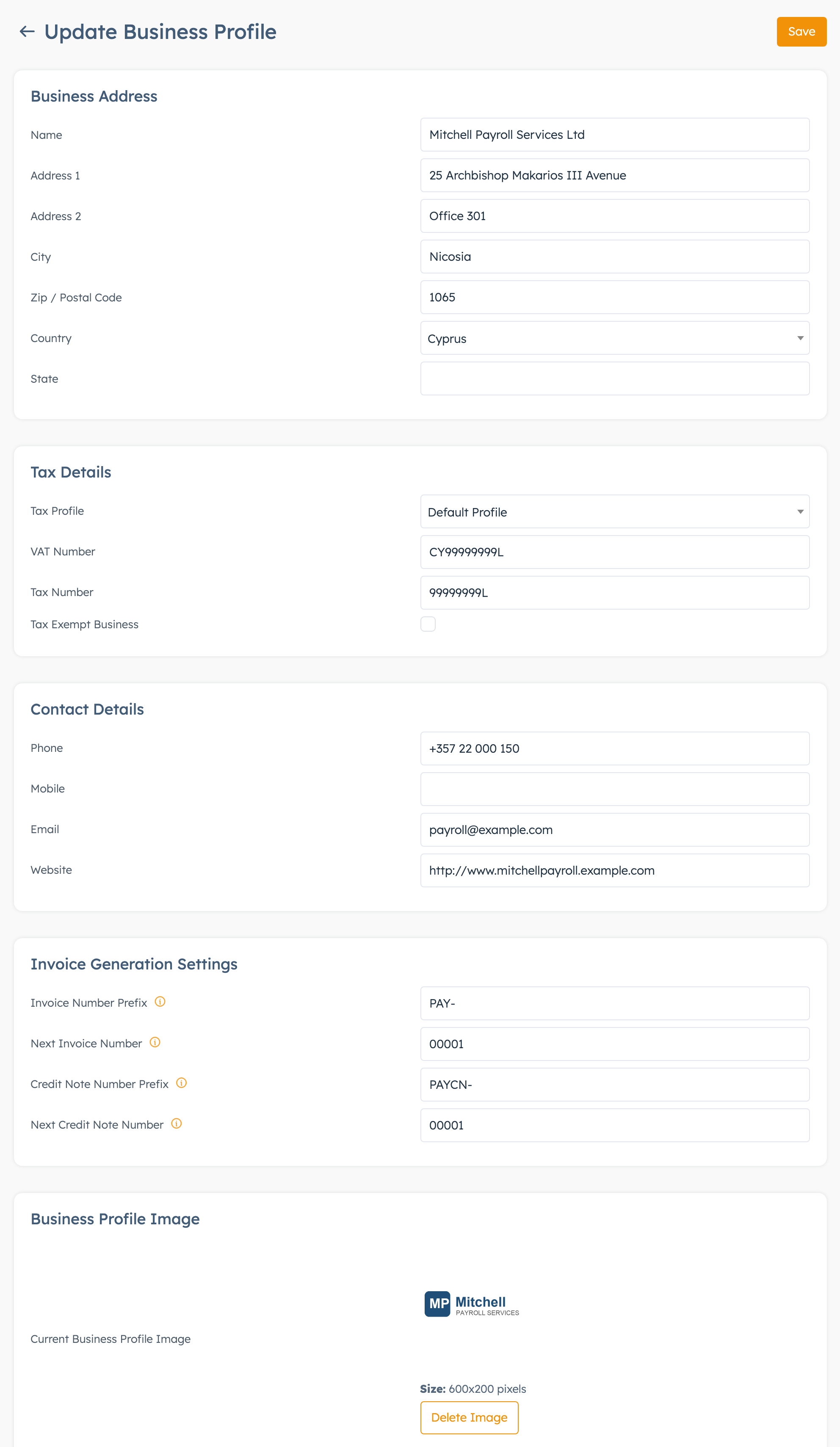
The fields in plain words#
| Field | What to enter |
|---|---|
| Name | The company's legal name. It prints as the issuer on invoices, proposals and payment receipts. Required. |
| Address 1, Address 2, City, Zip / Postal Code | The registered address. |
| Country, State | Pick the Country first. The State list changes to match. |
| Tax Profile | The VAT rules for this company's documents. Leave Default Profile unless this company charges different VAT rates. See Set up VAT on your documents. |
| VAT Number | The VAT number with its country code in front, for example CY12345678X. When you leave the field, the system checks it with the EU's VIES service. A valid number turns green and shows the registered name and address. An invalid one shows "Invalid EU VAT Number", and if VIES can't answer you see its error message. You can save either way. |
| Tax Number | The company's Tax Identification Code (TIC). |
| Phone, Mobile, Website | Optional contact details. |
| Required. It must be a valid address. | |
| New Business Profile Image | The logo on this company's invoice, proposal and receipt PDFs. JPG, PNG, GIF or WEBP. Once uploaded, Delete Image removes it. |
Give the company its own numbers#
Each business profile has its own invoice and credit note numbers, separate from your main company's.
| Field | What to enter |
|---|---|
| Invoice Number Prefix | Letters in front of each invoice number, for example PAY-. Use a different prefix from your main company, so the two companies don't print the same number. |
| Next Invoice Number | The number the next invoice gets, with leading zeros, for example 00001. If you're moving from other software, type the next number of your old sequence. |
| Credit Note Number Prefix | For example PAYCN-. |
| Next Credit Note Number | For example 00001. |
Fill in both next numbers. The hint under Next Credit Note Number says you can leave it empty, but then this company's credit notes get the prefix and no number. Invoice numbering explains the leading zeros, and when an invoice gets its number.
A profile's invoice gets the profile's next number when you set its Status to your numbering status and click Save. If Add Payment gives it the number instead, the invoice takes your main company's prefix and next number. Give the invoice its number with Save first, then record the payment.
Pick the company on a document#
- Open the invoice, proforma invoice, credit note or proposal.
- In Issued By, pick the company. The first option is your main company.
- The system saves your choice straight away and reloads the lines.
- Click Calculate Taxes under the lines, so the VAT follows this company's tax profile.
Pick the company before an invoice gets its official number. After that, the invoice details are locked.
Change or delete a business profile#
To change a profile, click the pencil on its row, edit the fields and click Save. PDFs pick up the profile's details each time you open them, so a new address also shows on invoices you issued before the change.
To delete a profile, click the bin on its row and click Yes.
The system deletes the profile and its logo at once, and you can't undo it. Documents already issued from it lose their issuer: their PDFs print without the company's name, address, VAT number and logo. Keep the profile while any invoice, proposal or credit note uses it.
Good to know#
- To change your main company's name, address or VAT number, edit the Company Information settings. The Business Profiles page only lists the extra companies.
- The Default Business Profile setting in CRM settings only applies to invoices made from imported shop orders. Invoices you create yourself start on your main company.
- The invoice and credit note lists have a Business Profile filter, so you can see one company's documents at a time.
- Expenses and wallets can belong to a business profile too. See Expenses.