
Set up the CRM
Choose how invoices are numbered, what new documents say, when customers get reminders and who can open what.
CRM settings hold the choices you make once for the whole firm: invoice numbering, the texts new documents start with, payment reminders and the look of your PDFs. Open them from CRM > Settings > General. You need the Settings permission.
The page has four tabs: General, Default, Reminders and Expenses. Change what you need and click Save at the top. The page reloads on the same tab. No message confirms the save.
Use the setup wizard#
The system's Setup Wizards list includes Sales Flow Settings, a short version of this page with the CRM on/off switch, invoice numbering and the reminder days. The wizard is optional.
The wizard won't take 0 in First Unpaid Invoice Reminder or First Overdue Reminder. To switch those reminders off, use the Reminders tab on this page.
General tab#
| Setting | What it does | When to change it |
|---|---|---|
| Enable The CRM Plugin | Turns on everything the CRM does by itself. While it's off, the system sends no payment reminders, doesn't mark activities Overdue, sends no emails about overdue or starting activities or rotten deals, and doesn't mark proposals Expired when their due date passes. It also shows the invoice and proposal links in your customers' portal. Off by default. | Switch it on when you start using the CRM. |
| Delete The Proposal on Invoice Creation | On: when you turn a proposal into an invoice, the system deletes the proposal and opens the invoice. Off (default): the proposal stays, marked Invoiced. | Leave off if you want to keep your quotes. |
| Attach PDF to invoice eMails | Adds the PDF to invoice emails, payment reminders and credit note emails. Payment receipts always carry their PDF. Off by default. | Switch on if customers should get the PDF in the email. |
| Attach PDF to proposal eMails | Adds the PDF to proposal emails. Off by default. | Switch on if customers should get the PDF without logging in. |
| Shipping Options in Invoices/Proposals | Adds shipping charges to document lines and a shipping address to documents. Off by default. | Only if you charge for delivery. |
The subscription and online shop switches on this tab are in Subscriptions and online shop.
Invoice numbering#
A new invoice starts with a temporary number such as PROFORMA-57. It gets its official number from your sequence when it reaches the status you choose below. After that its number never changes and you can't edit the invoice any more.
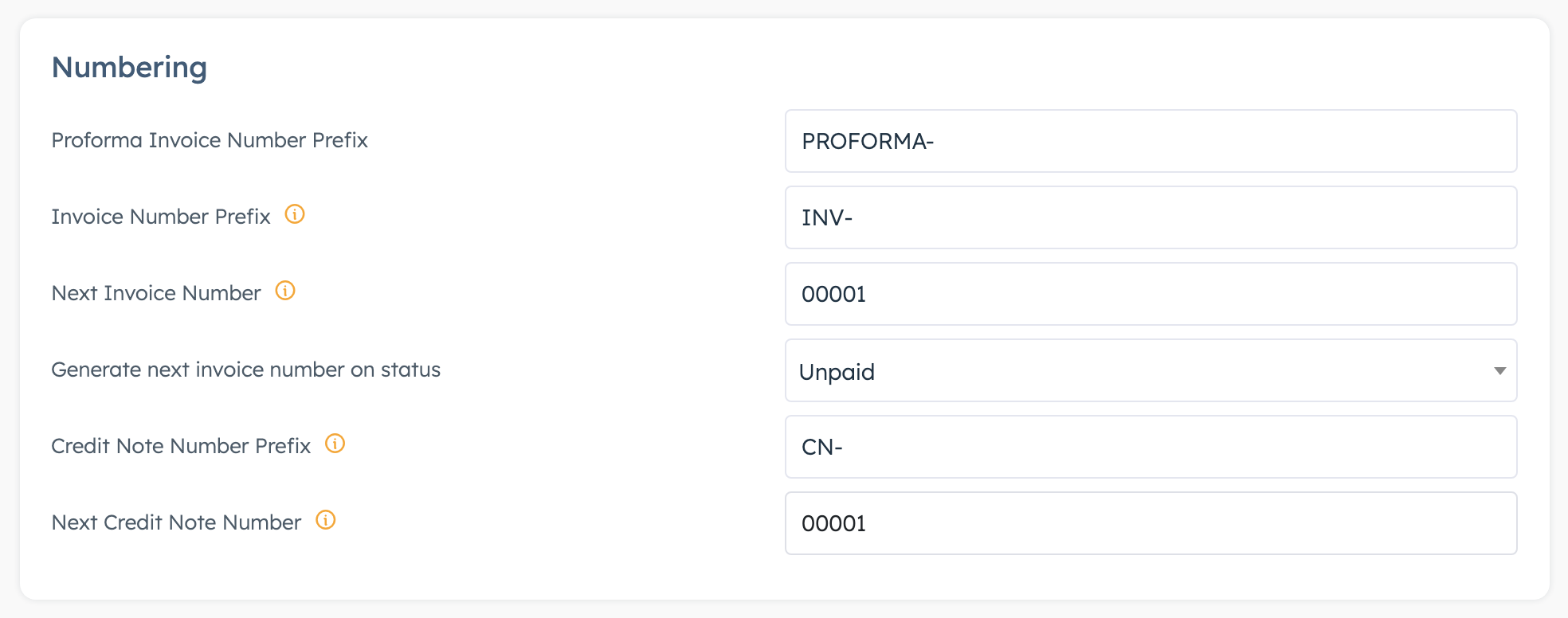
You find these fields in the Numbering section of the General tab.
| Setting | What it does | When to change it |
|---|---|---|
| Proforma Invoice Number Prefix | The start of the temporary number on drafts, proforma invoices and invoices still waiting for their official number. Default PROFORMA-. | Rarely. |
| Invoice Number Prefix | Text in front of each official invoice number, for example INV-. Empty by default. | Before your first invoice. |
| Next Invoice Number | The number the next invoice gets. The system adds 1 each time. Empty by default. | Before your first invoice, see below. |
| Generate next invoice number on status | The status at which an invoice gets its official number. Default Paid. | Before your first invoice, see below. |
| Credit Note Number Prefix | Text in front of each credit note number. Default CN-. | If you want a different prefix. |
| Next Credit Note Number | The number the next credit note gets. Credit notes have their own sequence and get their number when you move them out of Draft. Default 00001. | If you already have credit notes from another system. |
Fill in the next number#
Type the next number with leading zeros, using as many digits as you want your numbers to have. The system keeps that length: type 00001 and your invoices run 00001, 00002, 00003. Do the same for Next Credit Note Number.
If you leave Next Invoice Number empty, invoices get the prefix and no number. Give it enough digits as well. Once the count needs more digits than you typed, the system cuts the number and starts repeating old ones: 9 is followed by 1, and 99 by 10. Five digits cover 99,999 invoices.
If you change the number later, new invoices continue from the number you typed. Invoices that already have a number keep it. The system doesn't stop you from typing a number you've used before.
Choose when an invoice gets its number#
| Option | The invoice gets its official number when... |
|---|---|
| Unpaid | You issue it: its status becomes Unpaid, Partially Paid or Paid. |
| Partially Paid | Its status becomes Partially Paid or Paid. |
| Paid (default) | Its status becomes Paid. |
Until then the invoice keeps its temporary PROFORMA- number, and that number appears on the emails and PDFs you send. If your invoices need their official number on the day you send them, pick Unpaid.
If Add Payment gives an invoice its number, the system also changes the invoice date to today and works out a new due date from there.
If your firm uses proforma invoices, read Proforma invoices before you pick Unpaid. With that option, a proforma you set to Unpaid turns into a numbered invoice at once.
Business profiles have their own numbers#
Invoices and credit notes from a business profile use that profile's own numbers. Each profile has its own four fields under Invoice Generation Settings: Invoice Number Prefix, Next Invoice Number, Credit Note Number Prefix and Next Credit Note Number. Fill in all four, with leading zeros, before the first document from that profile. If you leave Next Credit Note Number empty there, credit notes from that profile get the prefix and no number.
There is one exception. When Add Payment gives an invoice its number, the number comes from the main sequence on this page, even for an invoice from a business profile. To keep the profile's sequence, number the invoice before you record the payment:
- Set the invoice's Status to the status you chose in Generate next invoice number on status.
- Click Save. The invoice takes the profile's next number.
- Record the payment with Add Payment under Invoice Payments.
With Unpaid numbering you can skip these steps. The invoice takes the profile's number when you issue it, before any payment.
Proformas from a business profile have the same catch: a payment or a status change on the proforma gives its invoice a number from the main sequence. Proforma invoices shows how to avoid it.
Invoice PDFs#
These are in the Invoices and PDF Template sections of the General tab.
| Setting | What it does | When to change it |
|---|---|---|
| Include Payment Methods on Invoice | Prints the payment methods you picked on the invoice, such as your bank details. On by default. | Leave on if customers pay by bank transfer. |
| Include Invoice Status on Invoice | Prints the status, for example Paid, on the invoice. On by default. | Switch off if you don't want the status on the PDF. |
| PDF Template | The layout of invoice, proforma, credit note, proposal and payment receipt PDFs: Classic, Minimal or Accent. Accent uses your system's main colour. Default Classic. Print always uses Classic. | Click a card, then Preview to see your newest invoice in that layout before you save. |
Default tab#
These settings fill in each new document. Changing them doesn't touch documents you've already created.
| Setting | What it does | When to change it |
|---|---|---|
| Set Invoice Due Date | Gives new invoices a due date. On by default. | Leave on so payment reminders can work. |
| Set Invoice Due Date After | How long after the invoice date the due date falls, in Days or Months. Default 10 days. | Set it to your usual payment terms, for example 30 days. |
| Default Items Unit | The unit for document lines that have none, and for products you save from a line. Default Pcs. | Hours if you bill most of your work by the hour. See Products. |
The Invoices section:
| Setting | What it does | When to change it |
|---|---|---|
| Default Payment Methods | The payment methods already ticked on each new invoice. None by default. | Pick your bank account so every invoice shows it. See Payment methods and wallets. |
| Default Payment Gateways | The online payment options already ticked on each new invoice. None by default. | If customers pay you online. |
| Terms & Conditions and Notes | The text new invoices start with. Empty by default. | Add your standard payment and legal wording once. |
| Visible Invoice Terms & Conditions and Visible Invoice Notes | Whether customers see the terms and notes, on screen and on the PDF. On by default. | Switch off if most invoices shouldn't show them. |
| Terms & Conditions on a new PDF page and Notes on a new PDF page | Starts that text on a new PDF page. Off by default. | For long terms. |
The Proposals section works the same way, with Introduction, Terms & Conditions, Payment Terms and Notes. Proposals explains each one.
Reminders and automatic emails#
Payment reminders to customers#
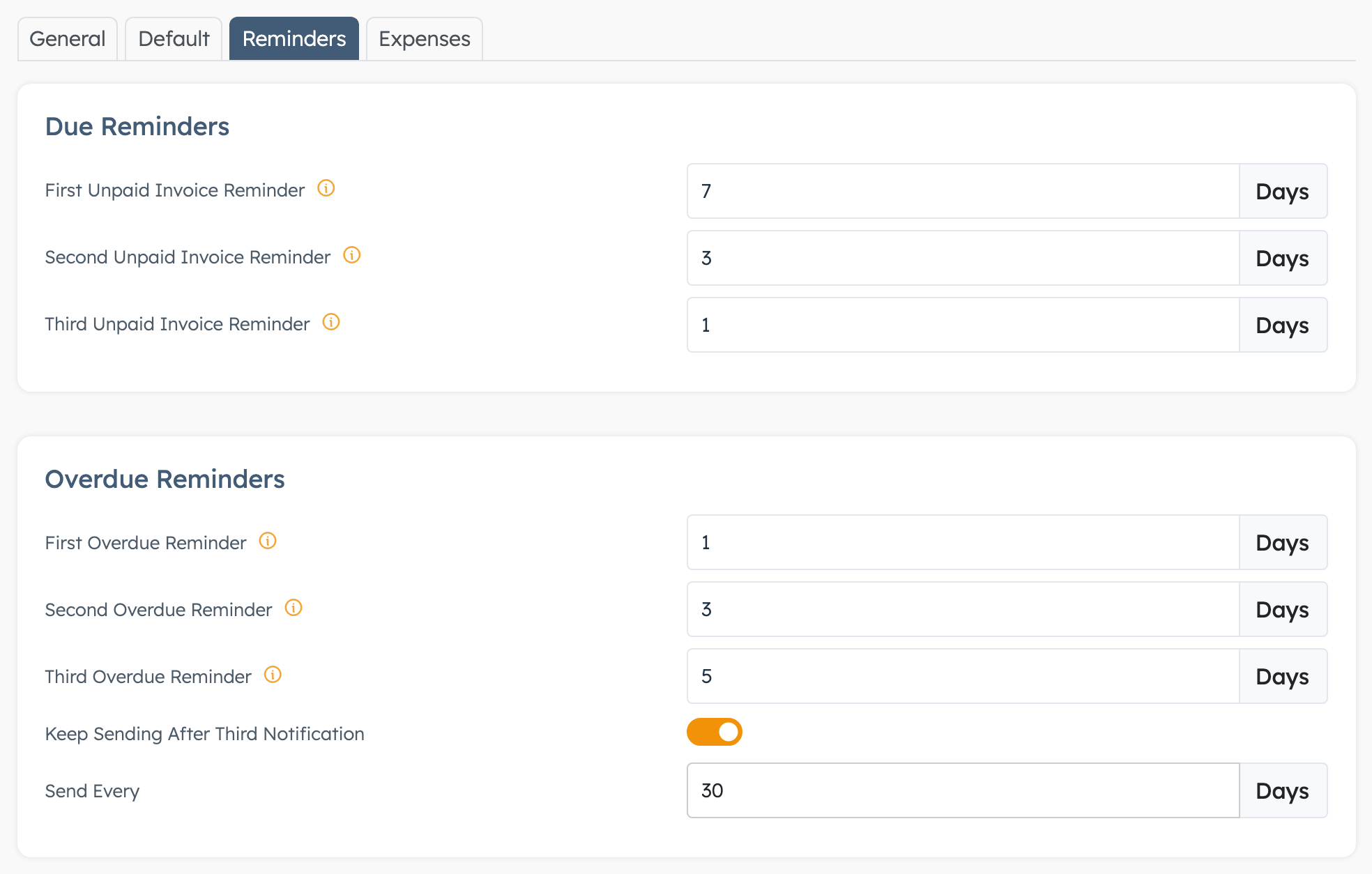
The Reminders tab sets when the system emails a customer about an unpaid invoice. Each box takes a number of days. 0 switches that reminder off.
| Setting | What it does | When to change it |
|---|---|---|
| First, Second and Third Unpaid Invoice Reminder (Due Reminders) | Days before the due date. Defaults 3, 3 and 1. | Pick three different days, for example 7, 3 and 1. If two boxes hold the same number, the customer gets two emails that day, so the defaults send two on day 3. |
| First, Second and Third Overdue Reminder (Overdue Reminders) | Days after the due date. Defaults 1, 3 and 5. | To match how you chase late payers. |
| Keep Sending After Third Notification | Keeps sending overdue reminders after the third one. Off by default. | For firms that chase until paid. |
| Send Every | Days between those extra reminders. Default 30. | Shorter if you chase harder. |
The reminders go out for invoices that are Unpaid or Partially Paid and have a due date. Proforma invoices and credit notes get none. The email goes to the organisation's primary contact, or to the user you issued the invoice to. Invoices for a customer you typed in get no reminders. The system sends each reminder on its day only.
To stop overdue reminders for one invoice, switch on Disable overdue reminders under Invoice Information while you can still edit the invoice. Once it has its official number the switch is locked. The reminders before the due date still go out.
Two things must be on before any reminder goes out, and a new system has both off:
- Enable The CRM Plugin on the General tab.
- The automatic invoice reminders for the whole system. Your system administrator switches these on, so ask them.
Emails to staff#
Each person picks which CRM emails they get:
- Click your name in the sidebar and choose Profile.
- Open the Notifications tab.
- In the CRM section, tick the emails you want.
- Click Save.
An administrator can set the same boxes for a colleague on that colleague's page under Admins, tab Notifications.
| Box | You get an email when |
|---|---|
| Proposal Comments | A customer comments on a proposal. |
| Proposal Response | A customer accepts or declines a proposal, or a proposal expires. |
| Smart Proposal Requests | A visitor sends a quote request from your website. |
| Overdue Activities | Your activities go overdue. See Activities. |
| Starting Activities | Your activities start within the next hour. |
| Rotten Deals | A deal you manage goes rotten. See Deals. |
The activity, rotten deal and proposal expiry emails go out only while Enable The CRM Plugin is on.
Change the wording of an email#
You can reword any email the CRM sends, or stop one. Go to Notifications > Notification Emails and open the CRM section. Open the email, change the Subject or Content, and click Save. Untick Active to stop the email. Payment reminders use the Invoice - to User email, the same one you send by hand from an invoice, so a change there shows in both.
Expenses tab#
These limits apply to receipts you attach to expenses. Record expenses and suppliers covers expenses.
| Setting | What it does | When to change it |
|---|---|---|
| Allow Attachments in expenses | Shows the Attachments section on expenses. On by default. | Leave on unless you keep receipts elsewhere. |
| Attachment file size limit (MB) | Largest file you can attach. Default 2 MB. | Raise it if the system refuses scanned receipts. |
| Attachments limit for each expense | Most files per expense. Default 3. | Raise it for expenses with many receipts. |
| Allowed Attachments Types | File types you can attach. Default png, jpg, gif, webp and pdf. | Add a type, for example xlsx, if staff attach spreadsheets. |
Subscriptions and online shop#
Most firms leave these off.
| Setting | What it does | When to change it |
|---|---|---|
| Subscription Options in Invoices/Proposals (General tab) | Adds a Subscription choice to lines, such as monthly, and a Type column to invoice lists. Off by default. See subscriptions. | If you bill services on a regular cycle. |
| Automatically Create Invoice for Paid Orders (General tab) | Creates a paid invoice when a customer pays for an order in your online shop. Off by default. See orders. | Only if you sell through the system's online shop. |
| Default Business Profile (Default tab) | The business profile for invoices made from imported shop orders. Invoices you create yourself always start on your company. Empty by default, which means your company. | If shop orders belong to one of your business profiles. |
Permissions#
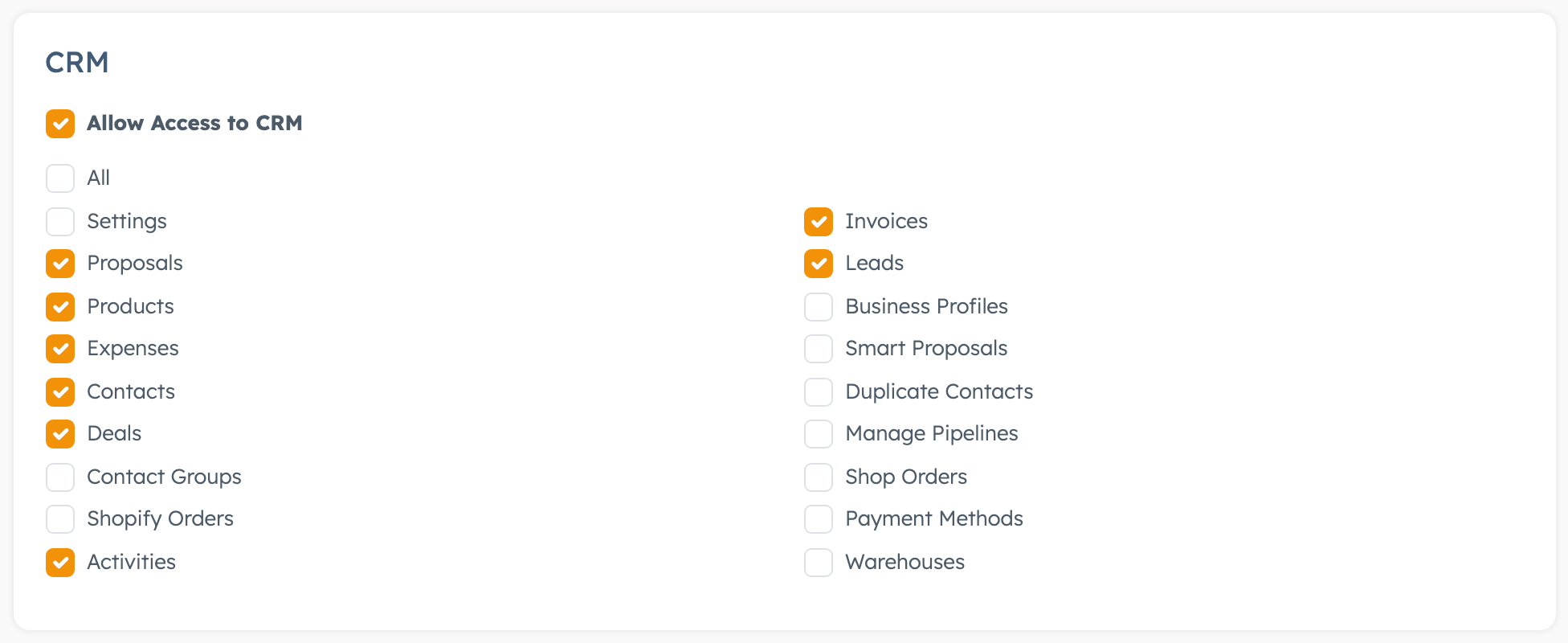
The person who manages staff accounts sets these. Go to Admins, open the colleague and open the Basic Permissions tab. In the CRM section, tick Allow Access to CRM, then tick the areas they need, and save. You can set the same boxes on an admin group.
| Permission | What it opens |
|---|---|
| Allow Access to CRM | The CRM menu and home page. Needed for everything below. |
| Settings | This settings page. |
| Invoices | Invoices, proforma invoices, credit notes, invoice payments and saved invoice filters, plus the invoice tabs on organisation, user, ticket and project pages. |
| Proposals | Proposals, plus the proposal tabs on organisation, user and project pages. |
| Leads | Leads and lead sources. |
| Products | Products and product groups. |
| Business Profiles | Business profiles. |
| Expenses | Expenses, expense categories, suppliers and wallets. |
| Smart Proposals | Smart proposals and proposal widgets. |
| Contacts | Contacts, plus the Contacts tab on organisations. |
| Duplicate Contacts | The duplicate contacts page. |
| Deals | Deals, plus the Deals tab on users. |
| Manage Pipelines | Creating and changing pipelines and stages. |
| Contact Groups | Contact groups. |
| Shop Orders | Importing orders from your online shop. |
| Payment Methods | Payment methods. |
| Activities | The activities list, plus the CRM Activities tab on users and tickets. |
| Warehouses | Warehouses. |
Only super admins can open CRM Reports, Leads Groups, Activity Types and the Activities tab on organisation pages. The list above has no box for them.
The CRM home page shows the firm's totals to anyone with Allow Access to CRM, whatever else you tick.
Good to know#
- Enable The CRM Plugin doesn't hide the CRM from anyone. Use permissions for that.
- A number you type on a draft invoice gets replaced by the next number in your sequence when the invoice gets its official number.