
Keep track of stock
Count the stock of each product, and keep a separate stock list for each warehouse or location.
The CRM counts stock in two separate places. Each product has its own count, In Stock, which goes down when you invoice. Warehouses are stock lists per location that you keep up to date by hand, and the two never update each other. If you keep goods in one place, the product's own count is often all you need.
You need the Products permission for In Stock and the Warehouses permission for warehouses.
Key ideas#
| Term | What it means |
|---|---|
| In Stock | One number per product. Invoices, proformas and credit notes change it. |
| Warehouse | A named location, such as a shop or store room, with its own list of products and quantities. You change it by hand. |
| Transfer | Moving a quantity from one warehouse to another. |
| Log | The history of a warehouse: every change, who made it and when. |
Count stock on a product#
- Open CRM > Settings > Products and open the product.
- Switch on Track Inventory.
- Type the current count in In Stock.
- Click Save.
The Stock column on the product list now shows the count, in red below zero. On an invoice, the product's line shows "Stock: N" under the quantity.
After a stocktake, type the right number in In Stock and click Save. The CRM keeps no history of these corrections, so note the reason somewhere if you need it later.
What changes a product's stock#
This table covers the product's In Stock count. None of these actions change warehouse quantities.
| You do this | What happens to In Stock |
|---|---|
| Add the product to an invoice or proforma invoice with + | Goes down by 1 |
| Change the quantity on a product line | Goes down or up by the difference |
| Delete a product line | Goes back up by the line's quantity |
| Delete a whole draft invoice | No change |
| Cancel or refund an invoice | No change |
| Duplicate an invoice | No change |
| Turn a proforma invoice into an invoice | No change. The stock left when you added the line to the proforma. |
| Turn a proposal into an invoice | No change |
| Add the product to a credit note with + | Goes down by 1, the same as an invoice |
| Make a credit note from an invoice | No change |
| Add the product to a proposal or a deal | No change |
| Change a warehouse quantity or transfer stock | No change |
The quantity and delete rows work the same on invoices, proformas and credit notes.
Correct In Stock by hand when goods come back, when you cancel or delete an invoice, or when you convert a proposal. You can invoice a product with 0 in stock, and the count goes below zero.
To delete a draft invoice and get its stock back, delete its lines first, then the invoice.
Set up a warehouse#
- Open CRM > Settings > Warehouses and click Create New.
- Type a Name, and a Description such as the address.
- Click Apply Changes. The page stays open and the Items and Log tabs appear.
Add stock to a warehouse#
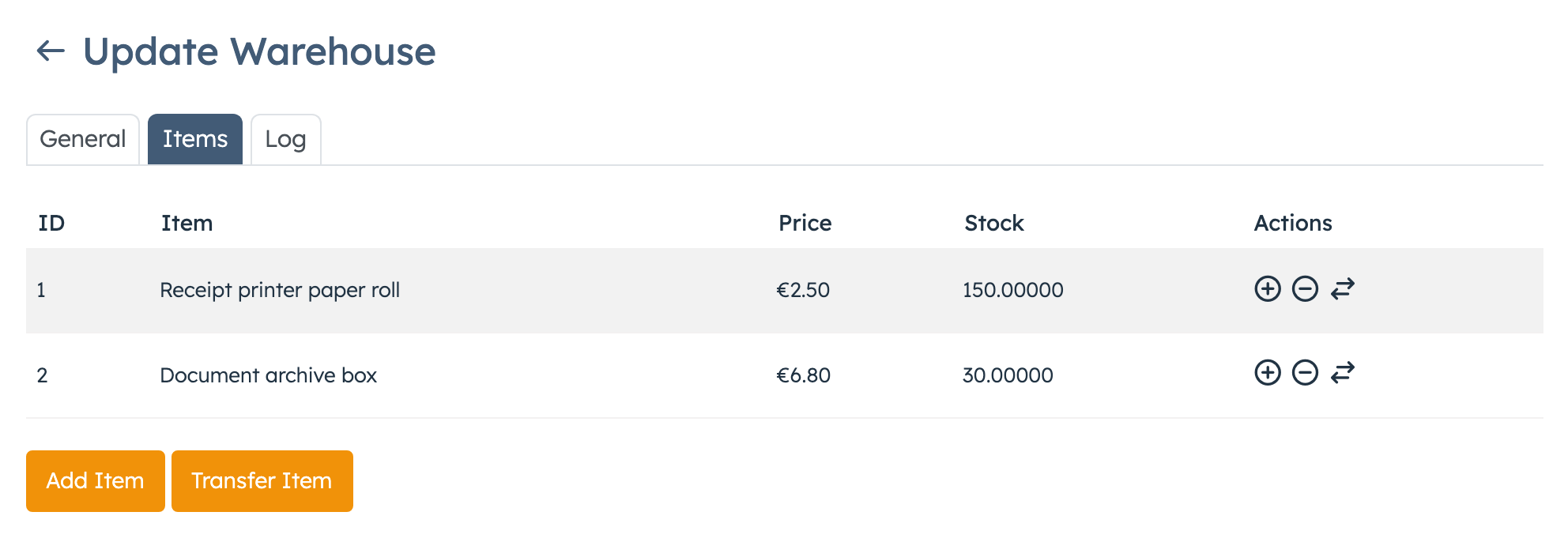
- Open the warehouse and go to the Items tab.
- Click Add Item (Add Items on an empty warehouse).
- Pick the product in Item and type the Quantity.
- Click Add.
If the product is already in the warehouse, the CRM adds the new quantity to what's there. The Price column shows the product's current price from your product list.
Change a quantity#
- On the Items tab, click the Add (+) or Remove (−) icon on the product's row.
- In the Increase Quantity or Decrease Quantity pop-up, type the Quantity to add or take away.
- Click Update.
You can't take away more than the warehouse holds.
Move stock between warehouses#
From the warehouse that has the stock:
- Click the Transfer icon on the product's row.
- Pick the To Warehouse and type the Quantity.
- Click Transfer.
From the warehouse that receives the stock:
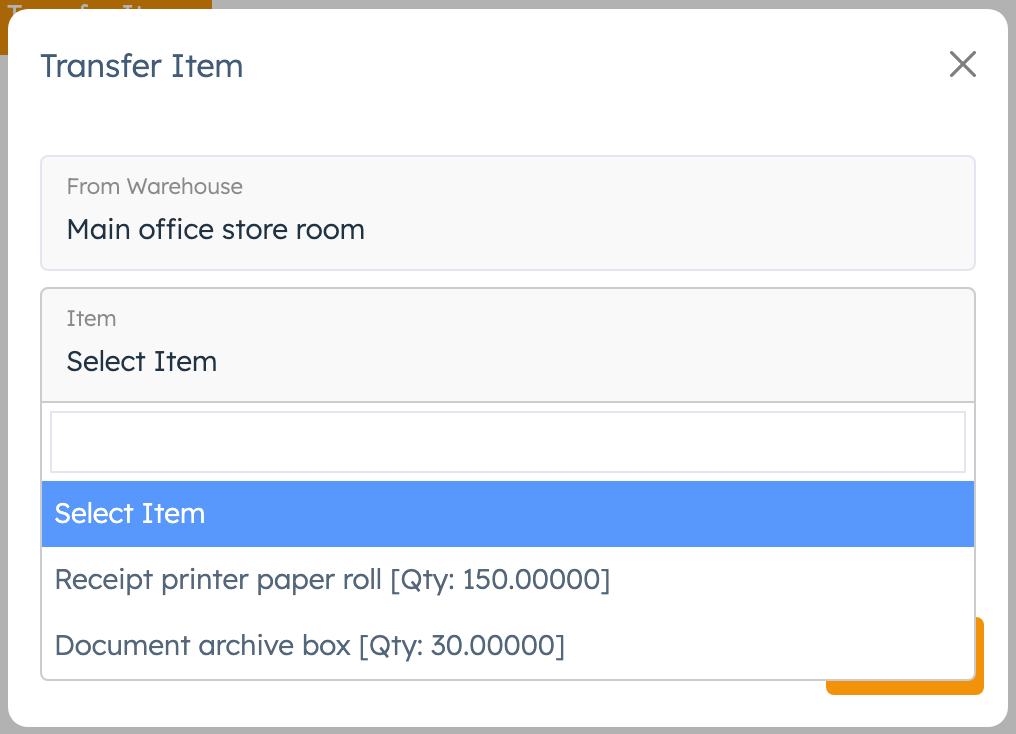
- Click Transfer Item.
- Pick the From Warehouse, then the Item. Each item shows how many that warehouse holds.
- Type the Quantity and click Transfer.
Both warehouses get an entry in their Log.
Check a warehouse's history#
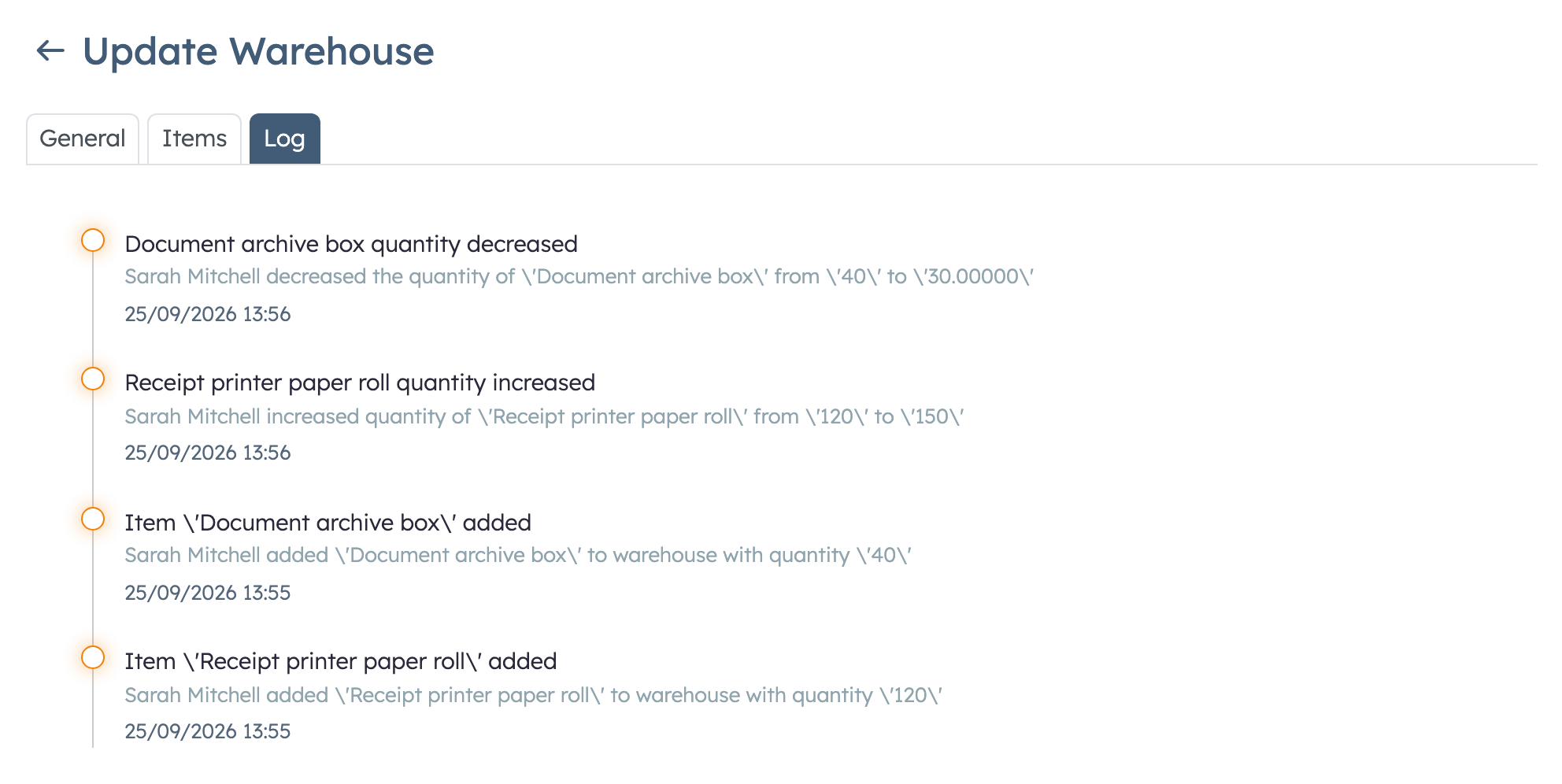
Open the Log tab. The newest change comes first, for example "Maria increased the quantity of 'Paper A4' from '5' to '8'", with the date and time. You can't edit or delete log entries.
Good to know#
- Invoices never lower warehouse quantities. Update the warehouse yourself after each sale or delivery. If you also track In Stock, correct both.
- Duplicating a product copies its In Stock count to the copy.
- Deleting a product removes it from all warehouse lists.