How the CRM fits together
See how leads, contacts, deals, proposals and invoices connect, which guide covers what, and where to start.
The CRM is where your firm keeps track of possible and existing customers, sends them quotes and bills them. You find it under CRM in the left sidebar. You need the Allow Access to CRM permission, plus a permission for each area you work in.
From first enquiry to payment#
A new customer moves through these steps:
| Step | What it is | Guide |
|---|---|---|
| Lead | Someone who might become a customer: a phone enquiry, a website form. | Leads |
| Contact | A person or company you work with. You turn a good lead into a contact. | Contacts |
| Deal | A piece of work you hope to win from a contact. You move it through the stages of your pipeline and mark it Won or Lost. | Deals |
| Proposal | A priced quote. The customer accepts or declines it online. | Proposals |
| Invoice | The bill. Create Invoice on an accepted proposal copies it into an invoice, or you start one from scratch. | Invoices |
| Payment | You record each payment on the invoice until it shows Paid. | Invoices |
You can skip steps. An existing client can get an invoice with no lead, deal or proposal behind it. Deals and proposals don't link to each other, so when a deal is ready you create the proposal yourself.
Activities sit around all of this. An activity is a call, meeting, email or task you log or plan on a contact or a deal. See Activities.
Three more documents come in along the way. A proforma invoice asks for payment before the real invoice, and the CRM turns it into the invoice later. A credit note corrects or refunds an invoice you've issued. Expenses record what your firm spends and sit beside the customer side.
Organisations and portal users#
Two kinds of records come from the wider system and show up across the CRM:
- An organisation is a company registered in the system. Invoices, proposals and support tickets can belong to it, and the CRM emails its invoices to the organisation's primary contact. A lead can become an organisation, a contact, or both.
- A user is a customer's login to your client portal. There, customers see their invoices and proposals and can accept or decline a proposal.
You issue an invoice to an organisation, to a user, or to a customer whose name you type in. You can also issue a proposal to a CRM contact, and a quote request from your website can create a proposal for a lead. The system doesn't email invoices to a typed-in customer, so send those yourself.
Find your way#
| I want to... | Go to |
|---|---|
| Keep enquiries until they're worth following up | Leads |
| Keep a client's details, notes and files | Contacts |
| Follow a possible job through its stages | Deals |
| Log a call or plan a meeting | Activities |
| Send a client a priced quote | Proposals |
| Build quotes from a saved menu, or take quote requests from our website | Smart proposals |
| Bill a client and record payments | Invoices |
| Ask for payment before the real invoice | Proforma invoices |
| Correct or refund an invoice | Credit notes |
| List our services and prices | Products |
| Keep track of stock | Warehouses |
| Record what the firm spends | Suppliers and expenses |
| Change numbering, default texts, reminders or permissions | Set up the CRM |
| Invoice from more than one company | Business profiles |
| Set up VAT rates | Taxes and VAT |
| Put bank details on invoices, or track bank and cash accounts | Payment methods and wallets |
The CRM home page#
Click the CRM heading in the left sidebar, with the sidebar expanded, to open the home page.
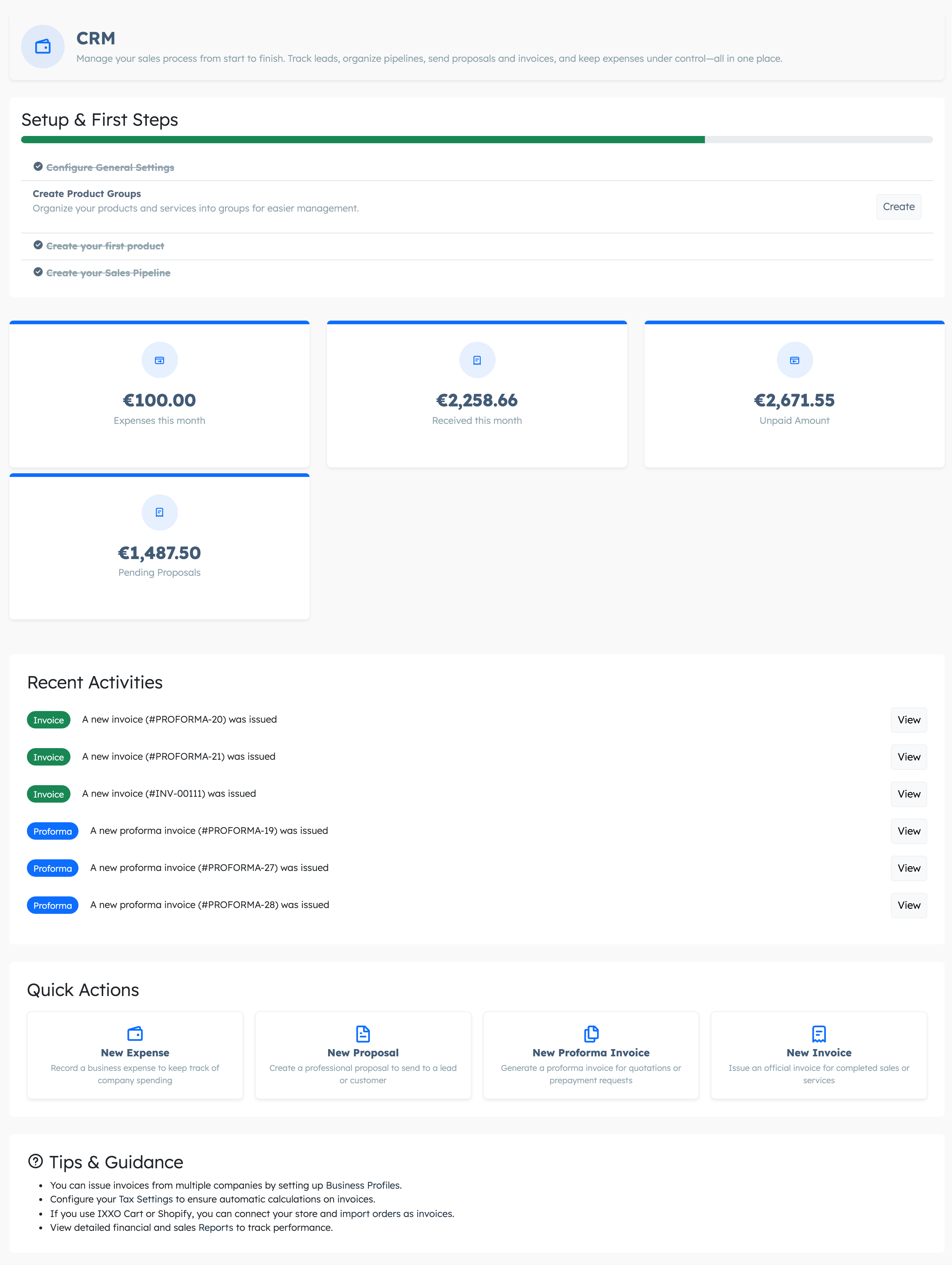
- Setup & First Steps lists four tasks with a progress bar: Configure General Settings, Create Product Groups, Create your first product and Create your Sales Pipeline. It disappears once all four are done.
- Four cards show totals: Received this month, Unpaid Amount, Pending Proposals and Expenses this month. Click a card to open the matching list. The first three count your main company's documents. Each business profile gets its own three cards with the profile's name in brackets.
- Recent Activities shows up to three each of the newest invoices, proforma invoices and expenses, going back to a few days before your previous login. These are documents, not the calls and meetings from Activities.
- Quick Actions has buttons for New Invoice, New Proforma Invoice, New Proposal and New Expense.
- Tips & Guidance links to setup pages such as business profiles and tax settings.
Anyone with CRM access sees these totals, including documents their colleagues created. Received this month adds up invoices marked Paid with an invoice date in the last month. Unpaid Amount leaves out invoices with the status Partially Paid.
First-time setup#
The person who runs the CRM at your firm does this once, in this order:
- Check your firm's name, address and VAT number in the system's Company Information settings. Invoices and proposals use these unless you pick a business profile.
- Open CRM settings and switch on Enable The CRM Plugin. It's off on a new system, and until you switch it on the system sends no reminders or automatic emails and doesn't mark activities overdue.
- Set up invoice numbering.
- If you invoice from more than one company, add business profiles.
- Set up your VAT rates, see Taxes and VAT.
- Add your bank details as payment methods.
- Add your services and products, sorted into product groups.
- Create your sales pipeline.
- Set up payment reminders and give colleagues permissions.
CRM tabs on other pages#
- Organisation page: Proforma Invoices, Invoices, Proposals and Contacts tabs.
- User page: Proposals, Invoices, Deals and CRM Activities tabs.
- Support ticket: Invoices and CRM Activities tabs, with counts.
- Project page: Proposals, Invoices and Proforma Invoices tabs, covering the project and its sub-projects.
You see a tab only if you have the permission for that area.