
Issue credit notes
Credit all or part of an invoice with a numbered credit note, and send it to the customer.
A credit note gives a customer money back, or reduces what they owe, on an invoice you have already issued. Use one for returned goods or a price correction. The invoice keeps its number, and you record the correction on a separate credit note.
You need the Invoices permission to see these pages.
Key ideas#
| Term | What it means |
|---|---|
| Credit note | Its own document in CRM > Credit Notes. Amounts show as positive numbers, and the PDF shows the total as Total Credit. |
| Status | Draft while you work on it. Issued once it is final: the credit note gets its number and you can send it. |
| Credited Invoice | The invoice the credit note refers to. The system fills it in when you start from an invoice. |
| Credit note numbers | A sequence of their own, separate from invoices, for example CN-00001. |
Set up credit note numbering#
The main sequence is in CRM > Settings > General: Credit Note Number Prefix (starts as CN-) and Next Credit Note Number (starts as 00001). See Invoice numbering.
If your firm issues documents from business profiles, each profile needs its own credit note numbers. Do this before the first credit note from that profile:
- Open CRM > Settings > Business Profiles and open the profile.
- Under Invoice Generation Settings, fill in Credit Note Number Prefix.
- Fill in Next Credit Note Number with leading zeros, for example
00001. - Click Save.
If you leave Next Credit Note Number empty, credit notes from that profile get the prefix and no number. They don't fall back to the main sequence.
Create a credit note from an invoice#
The invoice must have its official number. An invoice still on a temporary PROFORMA- number has no Create Credit Note option. A credit note for an invoice from a business profile takes that profile's credit note numbers.
- Open the invoice. (Or use Create Credit Note in its row menu in the Invoices list.)
- Click Create Credit Note at the top of the page.
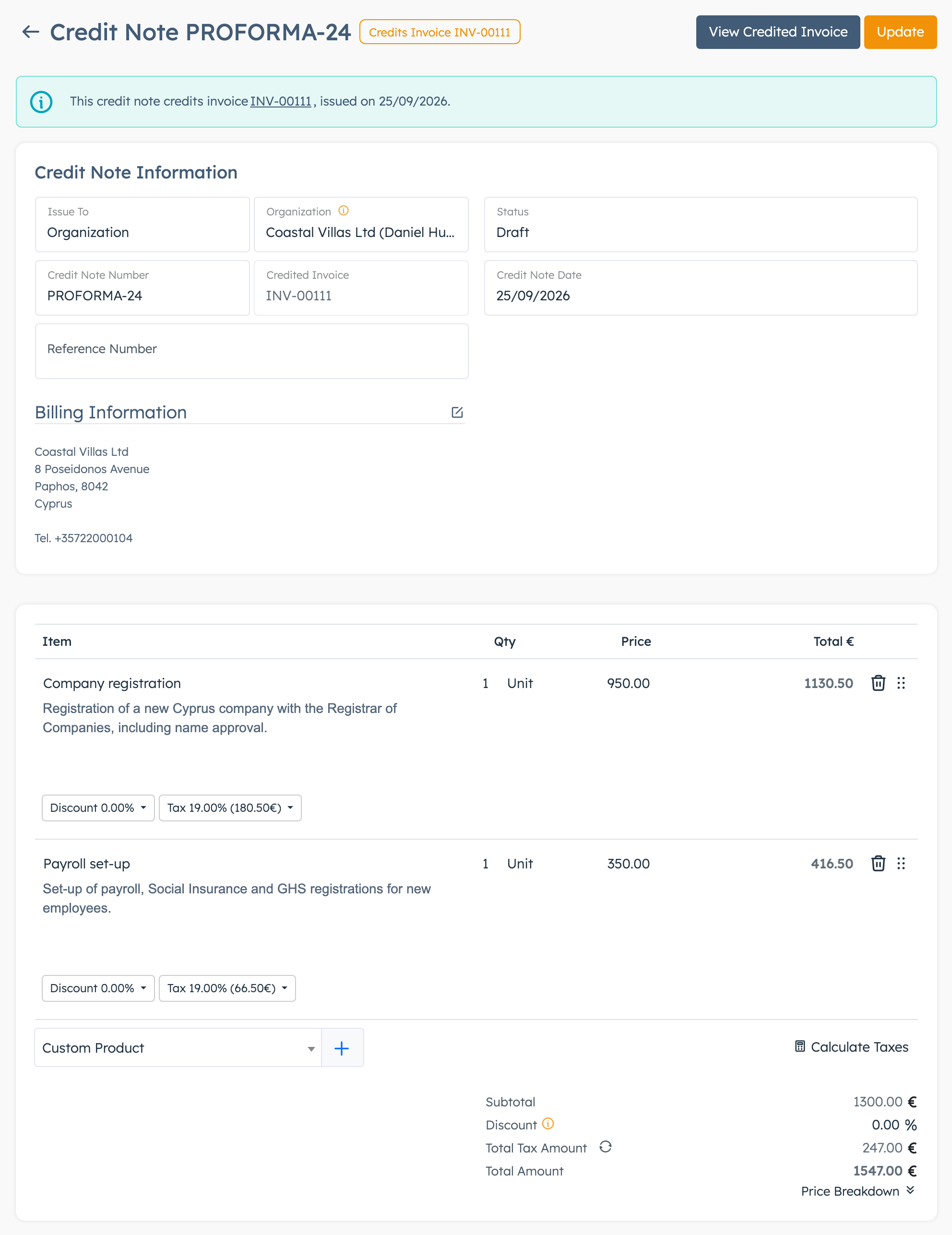
- Click Yes. The system creates a draft credit note with all the invoice's lines and opens it.
- For a partial credit, delete the lines you're not crediting and change the quantities or prices of the rest.
- Set Status to Issued and click Update. The credit note gets its number and the message "Credit Note updated" appears.
A blue banner at the top shows which invoice you are crediting. A yellow warning appears if the credit notes for one invoice add up to more than the invoice total. The system warns you but doesn't stop you.
Create a credit note on its own#
Use this when the invoice isn't in the CRM, for example one issued before your firm started using the system.
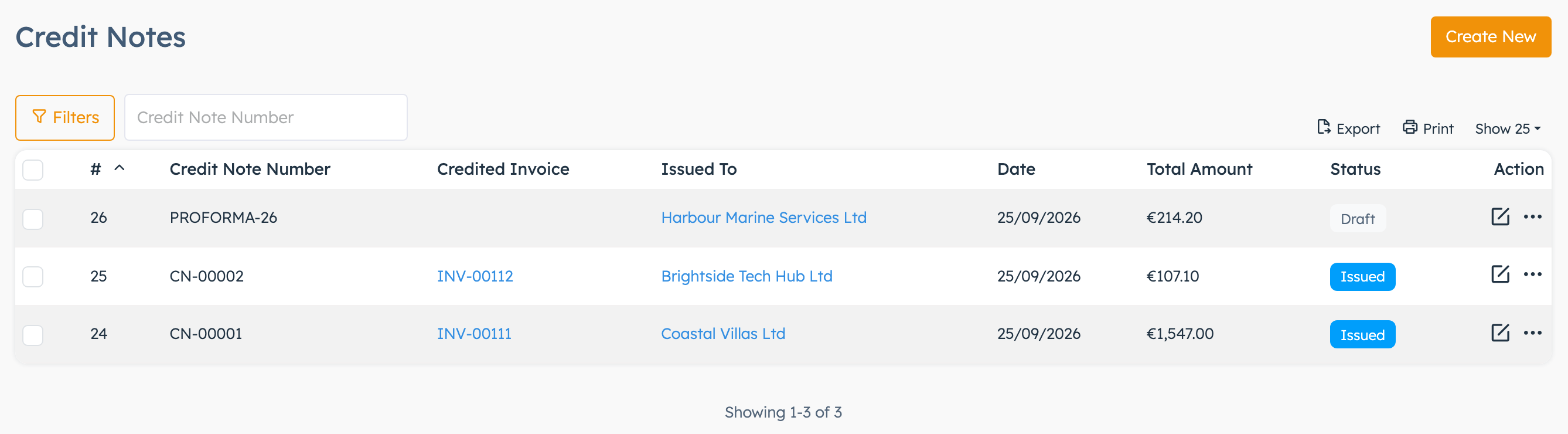
- Open CRM > Credit Notes and click Create New. The system creates a draft and opens it.
- Pick Issued By if you use business profiles, then set Issue To and choose the customer.
- Add the lines you're crediting.
- Type the number of the invoice you're crediting in Reference Number or in Notes. The Credited Invoice field stays empty on these credit notes.
- Set Status to Issued and click Update.
Send a credit note and get the PDF#
- Open the issued credit note.
- Click Send Credit Note to Customer at the top of the page.
- Choose Email or SMS.
The email goes to the organisation's primary contact, or to the user you issued it to. Its standard text has a View Credit Note link that opens without a login. Credit notes issued to a Custom customer get no email. The PDF goes with the email only if Attach PDF to invoice eMails is on in the CRM settings. The SMS reads "Credit Note #... is now issued" and goes to the Mobile number in the billing details.
At the bottom of the credit note:
- Export PDF downloads the PDF in your firm's PDF template.
- Print opens a print view.
- Copy Public Link copies a link the customer can open without logging in.
In the Credit Notes list, Credit Note PDF in the row menu downloads the PDF too.
Good to know#
- A credit note doesn't change the invoice it credits. The invoice's status and Remaining Amount stay as they were. The invoice page lists its credit notes in a blue note at the top. To mark the invoice as cancelled, see Change or cancel an invoice.
- Issued credit notes show as a credit on the customer's Statement report. Drafts don't.
- Stock: adding a stock-tracked product with + takes it off stock, as it does on an invoice. A credit note made from an invoice doesn't put stock back. If you track stock and the customer returned goods, correct In Stock on the product yourself (Products). Warehouse quantities need a manual update too (Warehouses).
- You can still edit a credit note after you issue it. It keeps its number.
- You can delete a credit note only while it is in Draft.