
Set up payment methods and wallets
Put your bank details on invoices, and track the balance of the accounts you pay expenses from.
Payment methods and wallets are two separate things. A payment method is the payment instructions printed on your invoices, such as your IBAN. A wallet is an account your firm pays expenses from, such as the office bank account or the petty cash box, with a running balance.
Key ideas#
| Term | What it means |
|---|---|
| Payment method | A block of text telling the customer how to pay, for example your bank name, IBAN and BIC. It prints on invoices. It doesn't take any money. |
| Payment gateway | An online payment service, such as a card payment provider, that your administrator sets up. It lets customers pay an invoice online. |
| Wallet | A place your firm's money sits, such as a bank account or the cash box. It has a balance, and expenses paid from it lower that balance. |
Add a payment method#
You need the Payment Methods permission.
- Go to CRM > Settings > Payment Methods and click Create New.
- Type a Name, for example "Bank transfer, Bank of Cyprus". It prints as the heading.
- In Description, write what the customer needs: account holder, IBAN, BIC and what to use as the payment reference.
- Click Save. The message "Payment Method created" appears.
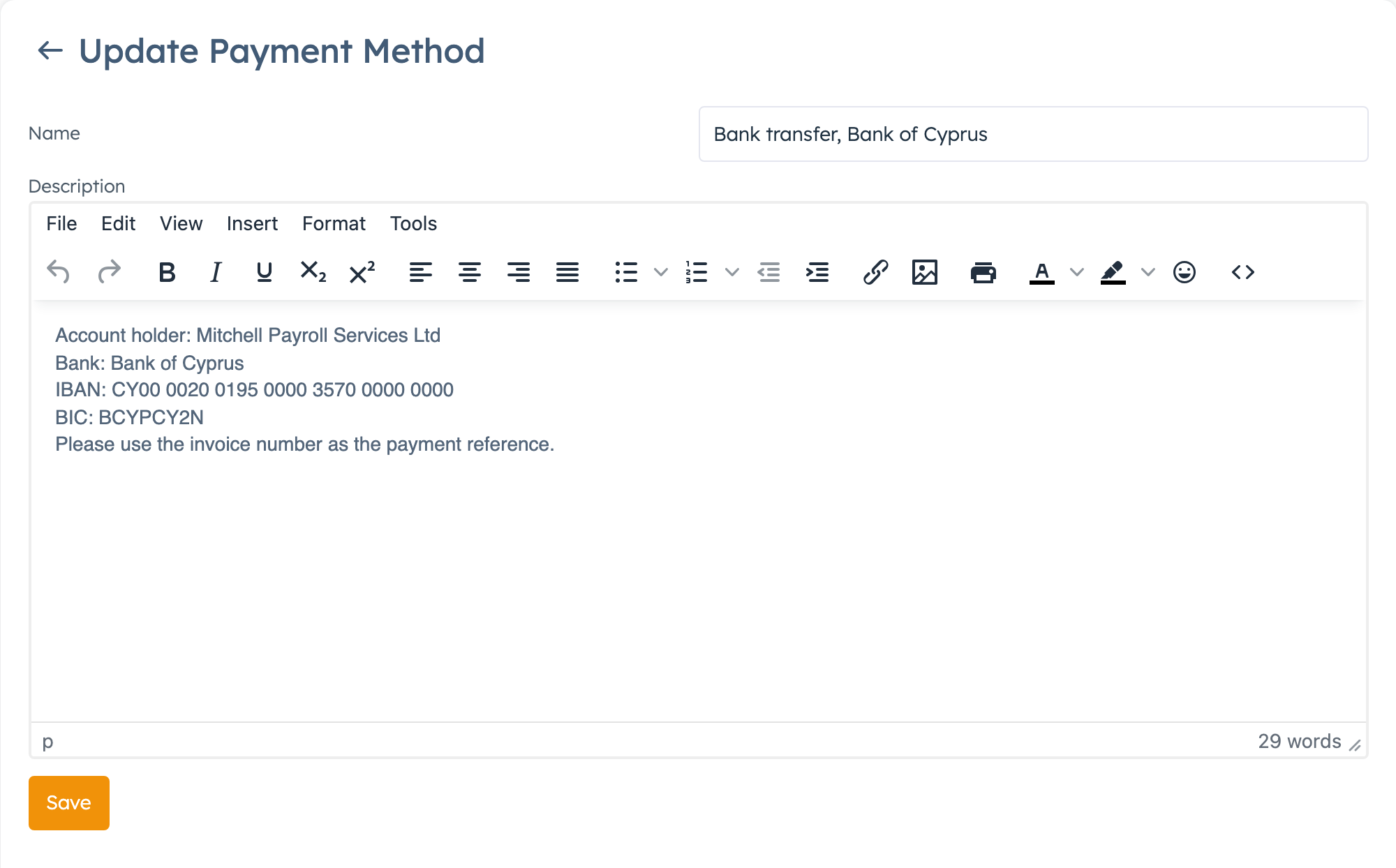
The page lists your methods under the title Custom Payment Methods.
Put payment methods on an invoice#
- Open the invoice and pick one or more methods in Payment methods.
- Save the invoice.
The invoice PDF shows each method's name and description, and so does the customer's invoice page. The PDF only shows them while Include Payment Methods on Invoice is on in CRM settings, which it is by default.
To have a method picked on every new invoice, choose it in Default Payment Methods on the Default tab of CRM settings. Invoices you already created keep their own choice.
Your methods also appear in the Payment Method list when you record a customer's payment with Add Payment.
Change or delete a payment method#
Click the pencil on the method's row, make your changes and click Save. You can't empty the Description: if you clear it and save, the old text stays. Type new text over it instead.
To delete a method, click the bin on its row and confirm.
Deleting a payment method removes it from every invoice that lists it, including invoices you already sent. Their PDFs no longer show those bank details. Payments you recorded with it lose the method's name. If old invoices still need the details, keep the method.
Let customers pay online#
Your administrator sets up online payment gateways outside the CRM. On an invoice, pick the gateways the customer may use in Payment gateways. Default Payment Gateways in CRM settings picks them for new invoices. Invoices explains when the customer sees the button to pay online.
Create a wallet#
You need the Expenses permission for wallets.
- Go to CRM > Settings > Wallets and click Create New.
- Pick the Business Profile the account belongs to: your main company, one of your business profiles, or Personal. An expense only offers the wallets of its own profile.
- Type a Name, such as "Bank of Cyprus current account", and the Account Number if you like.
- In Balance, type what the account holds today. You can't change it after this save.
- Set the Date of that opening balance.
- Switch on Active. New wallets start with it off, and expenses only offer active wallets in Paid from.
- Click Save. The message "Wallet added" appears.
You can also make a wallet from an expense: pick Create New in Paid from.
How a wallet's balance moves#
The balance changes only when you record an expense, a deposit or a transfer.
| What you do | What happens to the balance |
|---|---|
| Save an expense with Paid from set | Goes down by the expense total. |
| Change an expense's total or wallet | The system corrects the balance, or both balances if you moved the expense to another wallet. |
| Delete an expense | The amount goes back. |
| Duplicate an expense | The copy takes the amount out again. |
| Record a deposit | Goes up. |
| Transfer to another wallet | Goes down here and up in the other wallet. |
More on expenses in Record expenses and suppliers.
Record a deposit#
Use a deposit when money comes into the account from outside the CRM, for example when you top up the cash box.
- Open the wallet and click Deposit.
- Type the Amount, the Date and a Reference. Add a Description if you like.
- Click Deposit. The message "Deposit completed" appears and the balance goes up.
Move money between wallets#
- Open the wallet the money leaves and click Transfer Funds.
- Pick the other wallet in Send To.
- Type the Amount, the Date and a Name. Add a Description if you like.
- Click Transfer.
On the wallet list, the Deposit and Transfer icons on each row open the same panels.
See a wallet's history#
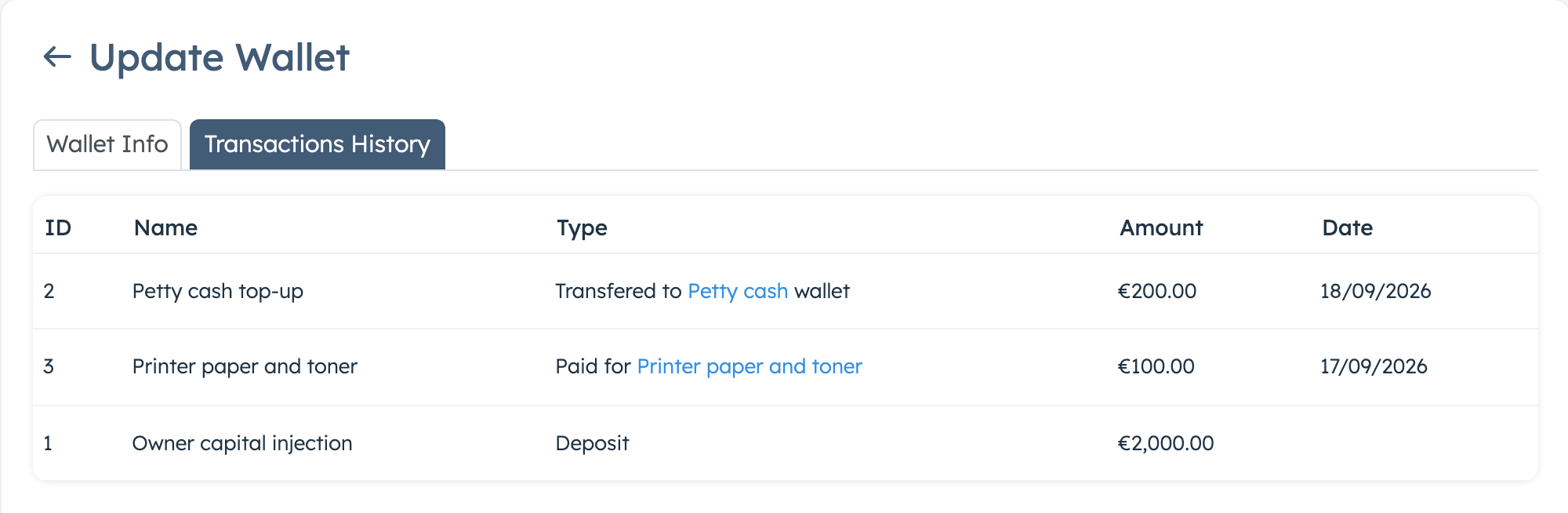
Open the wallet and click the Transactions History tab. Each line shows the type, such as an expense, deposit or transfer, with the amount and date.
Good to know#
- Customer payments on invoices never reach a wallet, so a wallet's balance won't match your bank statement.
- To hide a wallet from expenses, untick Active on the wallet list and click Save.