Set up VAT on your documents
Set your VAT rates once, so invoices and proposals fill in the right rate for each line and each customer.
You set your VAT rates once, in the system's Tax Settings. After that, the Calculate Taxes button on an invoice or proposal fills in the rate for each line. The rate depends on what you sell, where the customer is, and whether the customer is a VAT-registered business.
You need the Edit site settings permission to change tax settings. Ask your administrator if you can't open them.
Key ideas#
| Term | What it means |
|---|---|
| Tax profile | A full set of VAT rules. Default Profile always exists, and your main company always uses it. Most firms need nothing else. |
| Tax item group | A VAT category for what you sell, such as "Standard 19%" or "Exempt". Products and invoice lines carry one. |
| Tax region | A list of countries, such as "Cyprus" or "EU except Cyprus". |
| Tax rate | The percentage for one tax item group in one region, for private customers, businesses or both. |
| Individuals and Businesses | The system counts a customer as a business only when their organisation is a Business and its VAT number passed the EU or UK check. Everyone else counts as an individual. |
Open the tax settings#
Open the system Settings and click Tax Settings. The buttons at the bottom of each tax page take you to the others: Tax Settings, Tax Profiles, Tax Item Groups, Tax Regions, Tax Rates and Shipping Tax.
Worked example: a Cyprus firm#
This setup suits a firm that issues from its main company, types prices without VAT, and bills customers in Cyprus and sometimes elsewhere in the EU. Everything uses Default Profile. The system applies the rates you set up here and has no place-of-supply or OSS rules of its own. Check the right VAT treatment with your accountant, for example for distance sales of goods to private customers in other EU countries.
Step 1: the main settings#
- On Tax Settings, set Display Prices with Tax? to No.
- Set Apply Tax By to Order Billing Address and Display Tax As to VAT.
- Click Save. No message appears.
Step 2: the VAT categories#
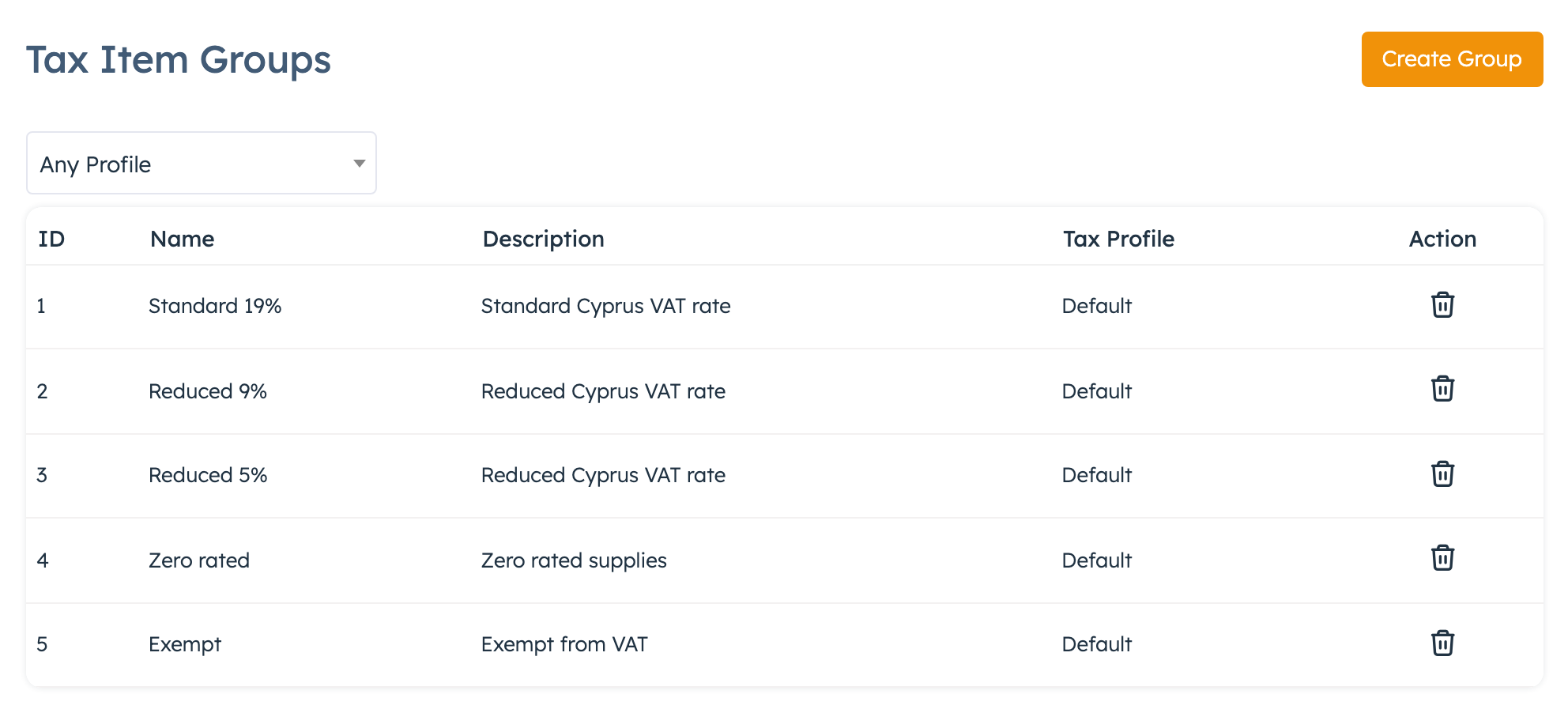
- Open Tax Item Groups and click Create Group.
- Pick Default Profile in Tax Profile, type the Name and save.
- Repeat until you have five groups: "Standard 19%", "Reduced 9%", "Reduced 5%", "Zero rated" and "Exempt".
Step 3: the regions#
- Open Tax Regions and click Create Tax Region.
- Pick Default Profile, type "Cyprus" as the Name and click Save.
- Under Tax Region Areas, click Add Region Area, pick Cyprus as the Country and save. Leave state and ZIP empty.
- If you bill customers elsewhere in the EU, create a second region called "EU except Cyprus". Click Add All EU Countries, then delete the Cyprus row from it.
Delete Cyprus from the EU region. If a country sits in two regions, the system adds both rates together, and a private customer in Cyprus would get 38%.
Step 4: the rates#
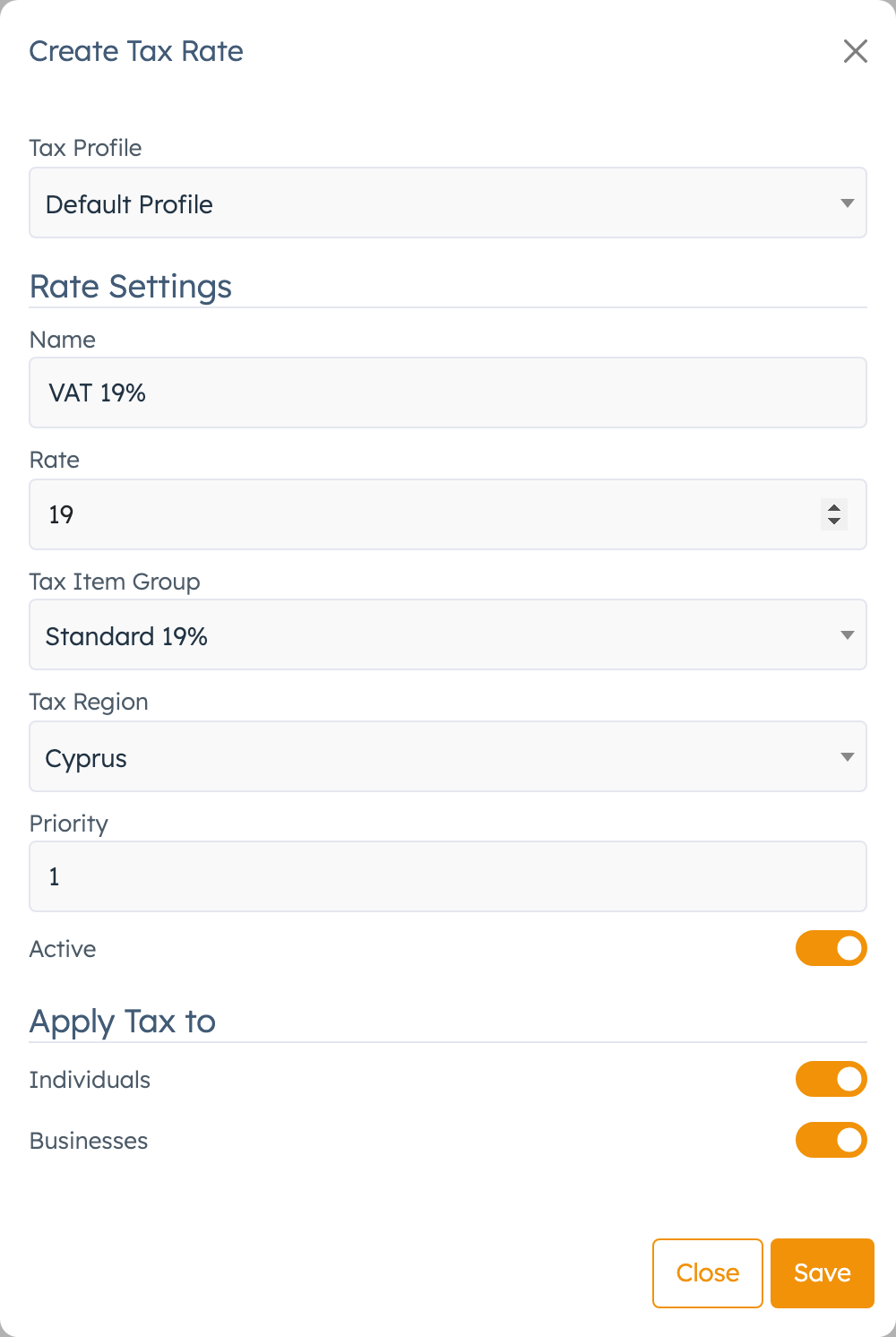
- Open Tax Rates and click Create Tax Rate.
- Pick Default Profile in Tax Profile.
- Fill in Name, Rate, Tax Item Group and Tax Region from the table below.
- Leave Priority at 1 and switch Active on.
- Under Apply Tax to, switch on Individuals and Businesses.
- Save, and repeat for each row.
| Name | Rate | Tax Item Group | Tax Region |
|---|---|---|---|
| VAT 19% | 19 | Standard 19% | Cyprus |
| VAT 9% | 9 | Reduced 9% | Cyprus |
| VAT 5% | 5 | Reduced 5% | Cyprus |
| VAT 0% | 0 | Zero rated | Cyprus |
| Exempt | 0 | Exempt | Cyprus |
New rates start with Individuals and Businesses both off, so they apply to no one until you switch them on. A Cypriot company with a valid CY VAT number counts as a business, so the Cyprus rates need Businesses on too.
For the "EU except Cyprus" region, create the same five rates with Individuals on and Businesses off.
With this setup, the system applies these rates when you click Calculate Taxes:
| Customer | VAT the system applies on each line |
|---|---|
| Any customer in Cyprus | The Cyprus rate of the line's group |
| A private customer elsewhere in the EU, or an EU business without a checked VAT number | The Cyprus rate of the line's group |
| An EU business with a checked VAT number | 0% |
| A customer outside the EU | 0% |
The system doesn't add reverse-charge wording to invoices.
Step 5: products and customers#
- Give each product a Tax Item Group. See Set up your products and services.
- Check that each customer organisation has its Organization Type, billing Country and, for businesses, the VAT number. See Check a customer's VAT number.
Calculate VAT on an invoice or proposal#
When you add a product to a line, the line takes the product's Tax Rate and Tax Item Group.
- Pick the customer and check Issued By.
- Open the Tax chip on each line and check the group in Select Tax Group.
- Click Calculate Taxes under the lines. The message "Taxes calculated" appears.
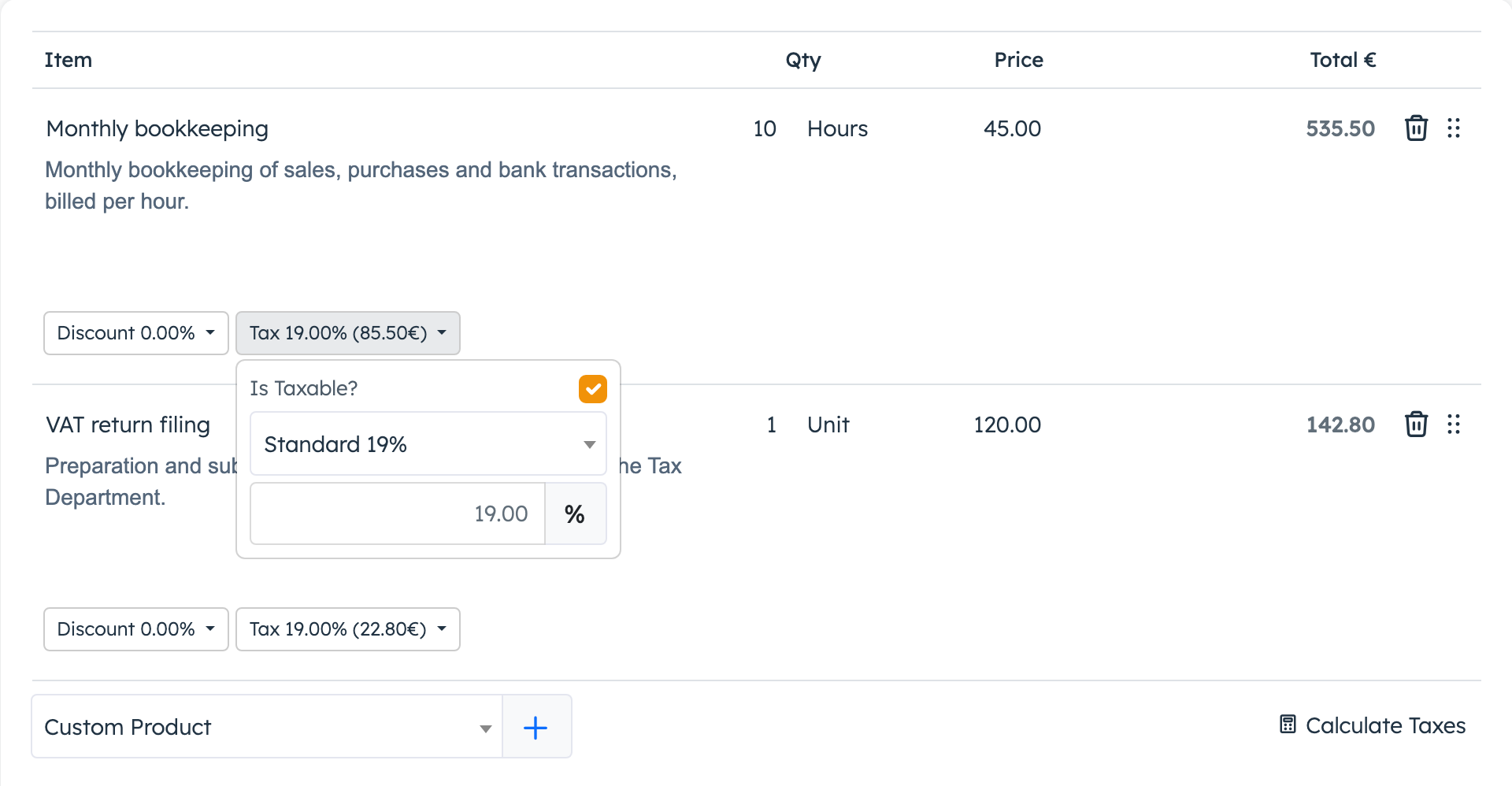
The system looks up the tax profile of the company in Issued By, the customer's billing country (with Apply Tax By on Order Billing Address) and whether the customer counts as a business. Each line with a group gets that group's rate. A group with no matching rate gets 0%.
Click Calculate Taxes again whenever you change a line's group, the customer or Issued By. After you pick a group, the line shows 0% until you do.
Type a rate by hand#
For a one-off rate, leave the line without a group:
- Open the line's Tax chip.
- In the group list, pick Select Tax Group. The rate box unlocks.
- Type the percentage in the rate box.
Saving the invoice never changes a rate you typed. Calculate Taxes leaves it alone too, unless Default Tax Item Group is set. In that case it gives the line that group and its rate.
For a line with no VAT, pick your "Zero rated" or "Exempt" group, or type 0.
Check a customer's VAT number#
The system checks a VAT number when you save a business organisation whose billing country is in the EU or the UK.
- Open the customer under Organizations.
- Set Organization Type to Business.
- Type the number in EU/UK VAT Number with its country code in front, for example CY12345678X. Greek numbers start with EL, not GR.
- Check that the billing Country is the customer's EU or UK country.
- Save the organisation.
When you leave the VAT field, the system shows "Valid VAT Number" and the registered name and address, or "Invalid VAT Number". On save, the Tax Exempt switch turns on for a valid number and off for an invalid one. You can't change it by hand.
On an organisation, Tax Exempt means "VAT number checked". It doesn't make the customer VAT-free. It decides whether the rates for Businesses or for Individuals apply.
An invoice copies the organisation's type, VAT number and check result at the moment you pick the organisation. If you correct a VAT number later, pick the organisation again on any open invoice. Typing a VAT number in the invoice's own billing details doesn't run the check. A customer picked as a user, or typed in by hand, always counts as an individual.
Settings explained#
These are on the Tax Settings page.
| Setting | What it does | When to change it |
|---|---|---|
| Display Prices with Tax? | No (default): the prices you type are without VAT, and the system adds VAT on top. Yes: your prices include VAT, and the system works the VAT out of them. | Set Yes only if you quote prices with VAT included. |
| Apply Tax By | Which country picks the rate. Order Billing Address (default) uses the billing country on the document. Default Tax Location (Company Information) uses the issuing company's own address for every customer. Order Shipping Address, or Billing Address if there is no shipping uses the shipping country. | Keep Order Billing Address for invoices and proposals. |
| Default Tax Item Group | Lines with no group get this group when you click Calculate Taxes. Default: none. | Set it to "Standard 19%" if most of your lines are standard rated and you don't type rates by hand. |
| Display Tax As | Prints "VAT" or "Tax" on documents. Default VAT. | Leave it. |
Good to know#
- With Order Billing Address, a document with no billing country gets 0% on every line that has a group.
- Changing a rate doesn't touch existing invoices. They keep their rates until you click Calculate Taxes on them again.
- Deleting a tax profile deletes its groups, regions and rates too. If you delete a group or a region, the lines that relied on it get 0% at the next Calculate Taxes.
- Stick to Default Profile where you can. A product carries a group from one tax profile. On a document from a company with another tax profile, Calculate Taxes gives that product 0%.