Send proposals and quotes
Prepare a priced quote, send it to the customer, collect their answer and turn it into an invoice.
A proposal is a priced quote for one customer, for example "Bookkeeping and VAT returns 2027" for Harbour Marine Services Ltd. You add the services or products, the system works out tax and totals, and you send it. The customer opens it online, accepts or declines it, and can sign it and leave comments. Once they agree, you turn it into an invoice or a proforma invoice with one click. Open it from CRM > Proposals. You need the Proposals permission.
Key ideas#
| Term | What it means |
|---|---|
| Draft | You're still preparing it. The customer can't open it yet. |
| Proposed | Sent and waiting for an answer. The customer can accept, decline or sign only while it has this status. |
| Accepted / Declined | The customer's answer. You can also set these by hand. |
| Invoiced | You created an invoice or proforma from it. The badge reads Invoice. |
| Expired | The Due Date passed while it was still Proposed. The system checks this by itself when Enable The CRM Plugin is on in Settings, and emails the customer and staff who ticked Proposal Response. |
| Private link | A secret web address for one proposal. Anyone who has it can open the proposal without logging in. The button for it is called Copy Viewkey. |
Create a proposal#
- Open CRM > Proposals and click New Proposal. The system saves a draft at once, numbered DRAFT- followed by a number.
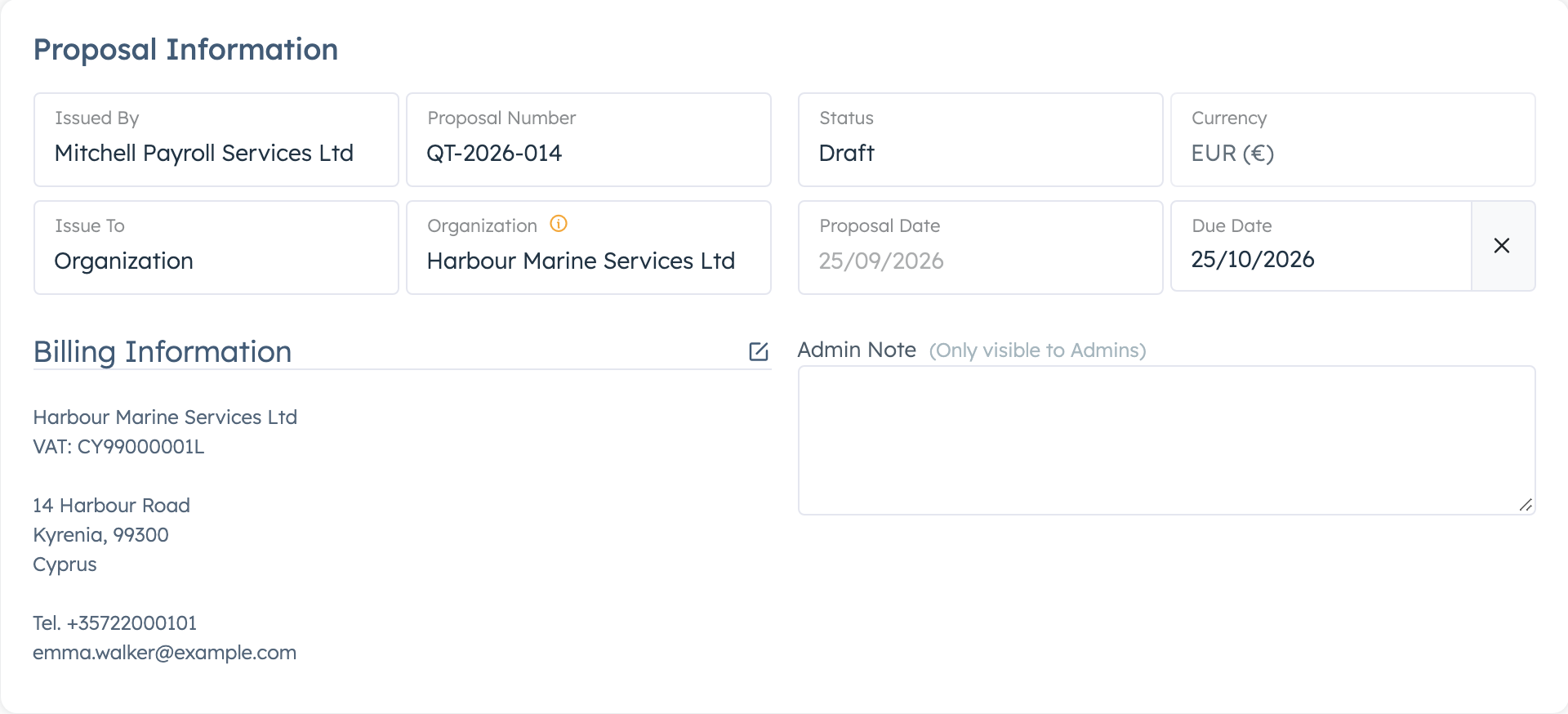
- In Issued By, pick the business profile the quote comes from. Leave it on your company name if you only have one. See Business profiles.
- In Issue To, pick the kind of customer, then search for the customer. Their billing details fill in on their own.
- In Proposal Number, delete the DRAFT- number and type your own. The system doesn't number proposals for you.
- Set the Proposal Date and the Due Date. The customer sees the due date as the expiry date.
- Add the lines (see below).
- Click Calculate Taxes.
- Click Save. You see Proposal Updated.
Choose the customer#
Issue To has four options:
- Organization: a company in your customer list. The billing address, email, customer type and VAT number come from the organisation.
- User: a person with their own customer account.
- Contact: a person from CRM > Contacts. Only the name fills in, so type the address yourself.
- Custom: someone who isn't in the system yet. Click the pencil on Billing Information, type the Name, address and Email, and click Update.
The system keeps changes to Customer Type, Name or VAT Number only when you click Update in the billing block. Save at the bottom doesn't store them.
If you start the proposal from an organisation's Proposals tab, the customer is already chosen but the billing details stay empty. Pick the customer again in Issue To to fill them in.
Add lines#
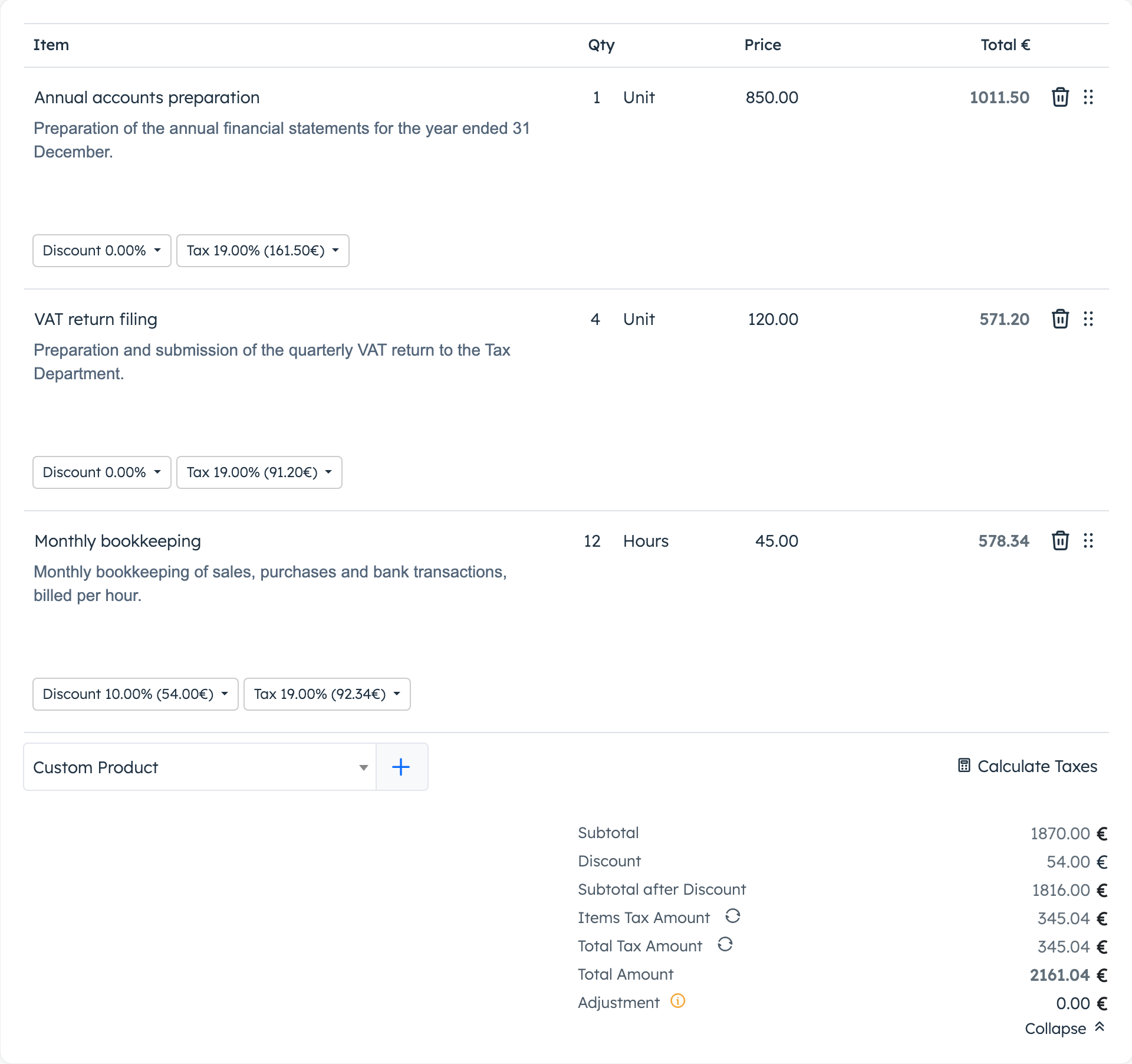
Choose a product in the list under the lines and click +. Choose Custom Product for a blank line you fill in yourself. For each line you set the quantity (whole numbers only), the unit and the Price. The small buttons under a line add more:
- Discount: a percentage or an amount off this line.
- Tax: tick Is Taxable? and pick a tax group or type a rate.
- Subscription: how often the line repeats, for example monthly. It shows only when Subscription Options in Invoices/Proposals is on in CRM settings. See subscriptions.
Calculate Taxes works out the tax for every line using the tax rules of the business profile in Issued By. See Taxes and VAT.
To keep a custom line for next time, click its Save to Products icon and it joins your Products. Drag a line by its handle to change the order.
Add your texts#
Under the lines you can fill in Introduction, Terms & Conditions, Payment Terms and Notes. Each text except the introduction has a Visible switch that decides whether the customer sees it, and a Display on a new PDF page switch. The introduction prints on its own first page of the PDF. Admin Note is for your team only, the customer never sees it.
Send the proposal to the customer#
- In Status, choose Proposed and click Save.
- Send it in one of the two ways below.
| Email Proposal to Customer (top of the page) | Copy Viewkey (bottom of the page) | |
|---|---|---|
| What it does | The system emails the customer a link to the proposal. | Copies the private link to your clipboard. Paste it into your own email or message. |
| Customer logs in? | Yes. The link opens the proposal in the customer portal. | No. The link opens the proposal straight away. |
| Who gets it | The organisation's primary contact, the user, the contact or the lead. The link opens only for someone with a portal login. | Anyone you send it to. |
Email Proposal to Customer appears only once the status is no longer Draft. For a Custom customer the system sends no email, even though you see Proposal Emailed to Customer. Send those customers the private link. Contacts, leads and anyone else without a portal login need the private link too.
The private link stays the same each time you click Copy Viewkey. Anyone who has it can open the proposal and answer it, so send it only to the customer.
What the customer can do#
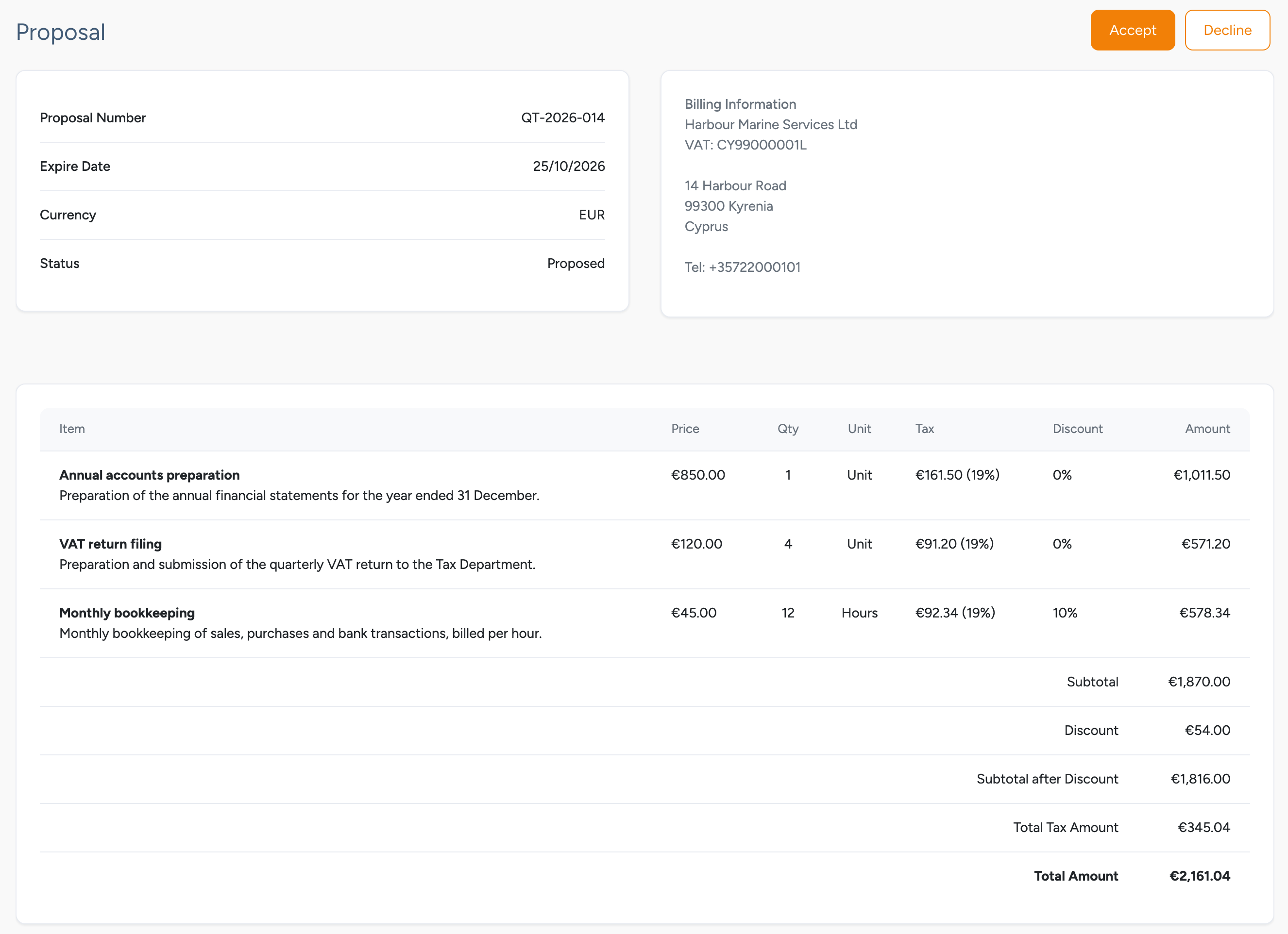
While the proposal is Proposed, the customer can:
- click Accept or Decline. There is no confirmation step: the status changes and both buttons disappear.
- sign it, or remove their signature (see below)
Once you've sent it, the customer can also write a comment, open Q & A if you added active questions, and click Print or PDF, whatever the status.
You get an email when they accept or decline if Proposal Response is ticked under Notifications in your admin profile. For customer comments, tick Proposal Comments. The customer doesn't get a confirmation email.
Signatures#
A proposal holds one signature. The customer clicks Sign Proposal, draws their signature, types their full name, ticks the confirmation and clicks Submit. The system saves the signature with the date, time and the customer's internet address. While the proposal is Proposed, the customer can click Remove Signature and sign again.
Signing doesn't accept the proposal. The customer still has to click Accept.
You can also sign from the proposal page: Sign Proposal, draw, type your name, tick the confirmation, then Save. The customer then sees your signature and can't add their own, so leave the signature to the customer if you need theirs. On the proposal page, Remove Signature clears any signature at once, with no confirmation.
Comments#
Click Discussion at the top of the proposal, type your message and click Add Comment. The customer replies from their page. The system emails the customer about your comment only when the proposal is for an organisation or a lead.
Add questions and answers#
Add answers to common questions, grouped in sections such as "Fees" or "Timeline".
- On the proposal, click Questions, then Create New.
- Pick a Section, or choose Create New and type a New Section Name.
- Type the Question and the Answer.
- Switch Active on. New questions start inactive and the customer doesn't see them.
- Click Save.
Active questions show under Q & A on the customer's page and at the end of the PDF. Questions belong to this proposal only.
Turn a proposal into an invoice#
You need the Invoices permission as well.
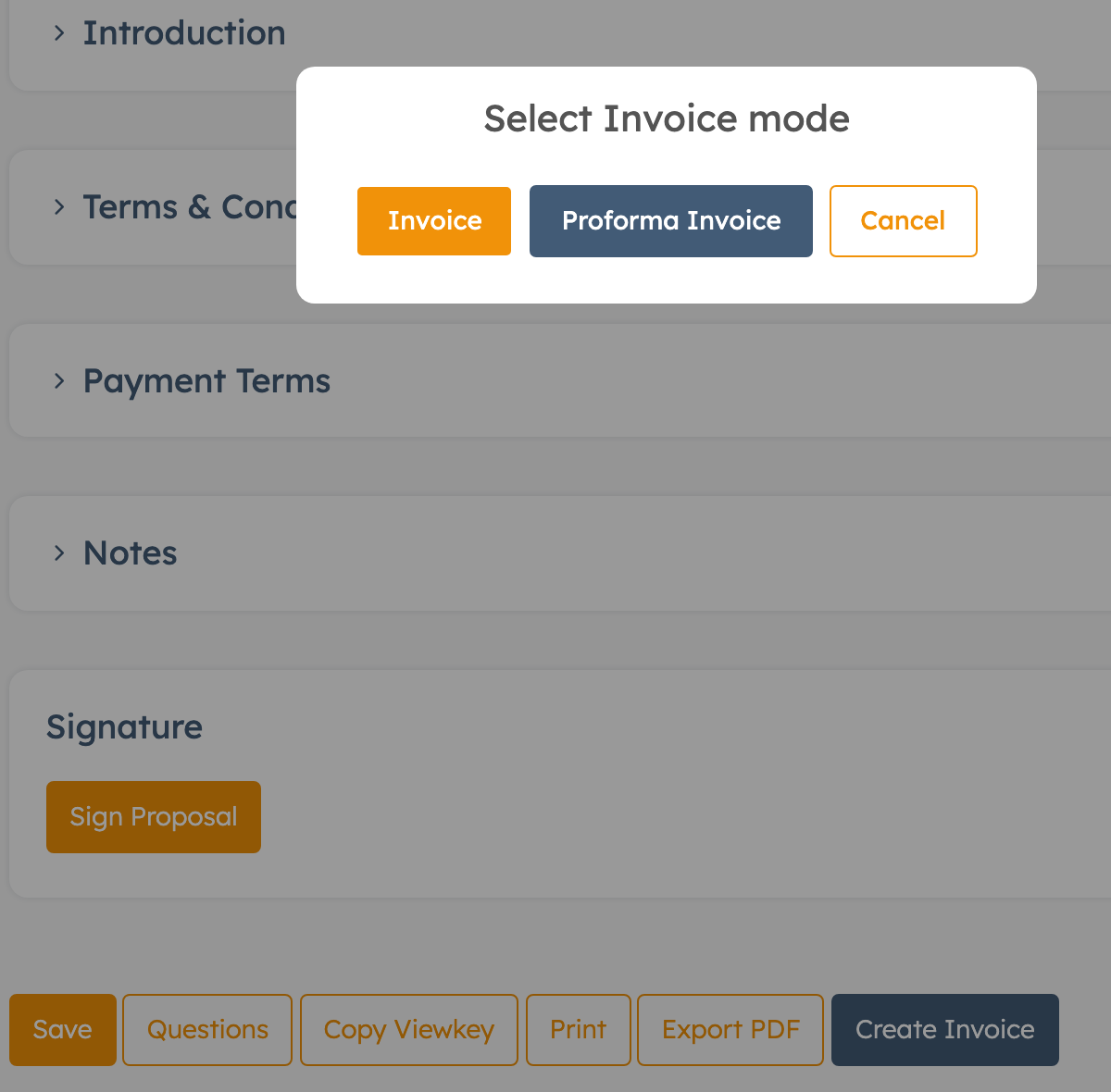
- Open the proposal and click Create Invoice.
- Choose Invoice or Proforma Invoice.
- You see Invoice created and the button changes to View Invoice.
The system creates a Draft with the customer, lines, discount, terms and notes, and puts the proposal number in its Reference Number. The introduction, payment terms and due date stay behind. A proforma lands in CRM > Proforma Invoices, an invoice in CRM > Invoices.
The new document has a temporary number such as PROFORMA-112. An invoice gets its official number when it reaches your firm's numbering status, see Invoice numbering. The proposal changes to Invoiced. Finish the document as usual, see Invoices or Proforma invoices.
For a proposal issued to a contact, use Create Invoice on the proposal page, not the icon in the list. On the page, the system moves the invoice to the contact's user or organisation. The list icon skips this step.
For a proposal issued to a lead, turn the lead into an organisation first, see Turn a lead into an organisation. The lead's proposals move to the new organisation with it. Then click Create Invoice.
Duplicate a proposal#
- In the Proposals list, click the Duplicate icon on the row and confirm.
- Open the copy. It's a Draft with today's date as both Proposal Date and Due Date.
- Change the Proposal Number. The copy keeps the original number.
- Set a new Due Date and click Save.
The copy includes lines and texts but not questions or the signature.
The copy keeps the original's private link code, and you can't make a new one. It also keeps any link to an invoice, so a copy of an invoiced proposal shows View Invoice for the old invoice and no Create Invoice. To quote a different customer, or to re-quote after invoicing, start with New Proposal.
Print or save as PDF#
At the bottom of the proposal, click Print for a printable page or Export PDF to download a PDF. Export PDF uses the layout picked in CRM settings, the same one your invoices use. The file name is your business profile or company name followed by the proposal number.
Settings explained#
These are in CRM settings, see Settings. Text defaults and switch defaults apply to new proposals only.
| Setting | What it does | When to change it |
|---|---|---|
| Delete The Proposal on Invoice Creation | On: after Create Invoice the system deletes the proposal and opens the new invoice. Off (default): the proposal stays, marked Invoiced. | Leave off if you want to keep quotes for your records. |
| Attach PDF to proposal eMails | Adds the proposal PDF to the email from Email Proposal to Customer. Off by default. | Turn on if customers should have the PDF without logging in. |
| PDF Template | Classic, Minimal or Accent layout for proposal and invoice PDFs. Print always uses Classic. | Pick the look you want. |
| Subscription Options in Invoices/Proposals | Shows the Subscription button on lines. Off by default. | Turn on if you quote recurring services. |
| Introduction, Terms & Conditions, Payment Terms, Notes (Default tab) | Text every new proposal starts with. Empty by default. | Set once with your standard wording. |
| Visible ... and ... on a new PDF page (Default tab) | Starting position of the matching switches on new proposals. | Change to match how you set most proposals. |
| Questions on a new PDF page | Starts the questions on a new PDF page. On by default, for every proposal. | Turn off to save paper. |
Good to know#
- Clicking New Proposal saves an empty draft at once. If you leave without finishing, delete it from the list.
- The system doesn't check proposal numbers, so two proposals can share one.
- Deleting a proposal can't be undone.
- If you delete the draft invoice made from a proposal, the proposal stays Invoiced. Set its Status to Accepted and click Save to get Create Invoice back.
- The Discount for the whole proposal is locked when a line has its own discount or the lines use different tax rates.
Related guides#
- Smart proposals: build proposals from a saved product list, or let website visitors request one
- Invoices and Proforma invoices
- Products
- Taxes and VAT
- Business profiles
- Settings