Quote faster with smart proposals
Save a menu of products, build proposals from it in a few clicks, and let website visitors request a quote.
A smart proposal is a saved menu of products from your catalogue, for example "Company formation package" with registration, registered office and first-year bookkeeping. You don't send it to anyone. You pick items from it to build a normal proposal in a few clicks. If you make it public, visitors to your website can tick items and ask you for a quote. Open it from CRM > Smart Proposals. You need the Smart Proposals permission.
Key ideas#
| Status | What it means |
|---|---|
| Draft | Not in use yet. It doesn't show anywhere. |
| Private | Your team can use it in Quick Proposal. Customers don't see it. |
| Public | Your team can use it in Quick Proposal, and you can put it on your website as a request form. |
Create a smart proposal#
- Open CRM > Smart Proposals and click Create New.
- Type a Name. Website visitors see it as the form's title.
- Choose a Status.
- Write a Description if the smart proposal will be public. Visitors see it above the list of items.
- Under Available Products, search for a product in Search for a Product and click +. Repeat for each product. The system saves each one as you add it.
- Click Update.
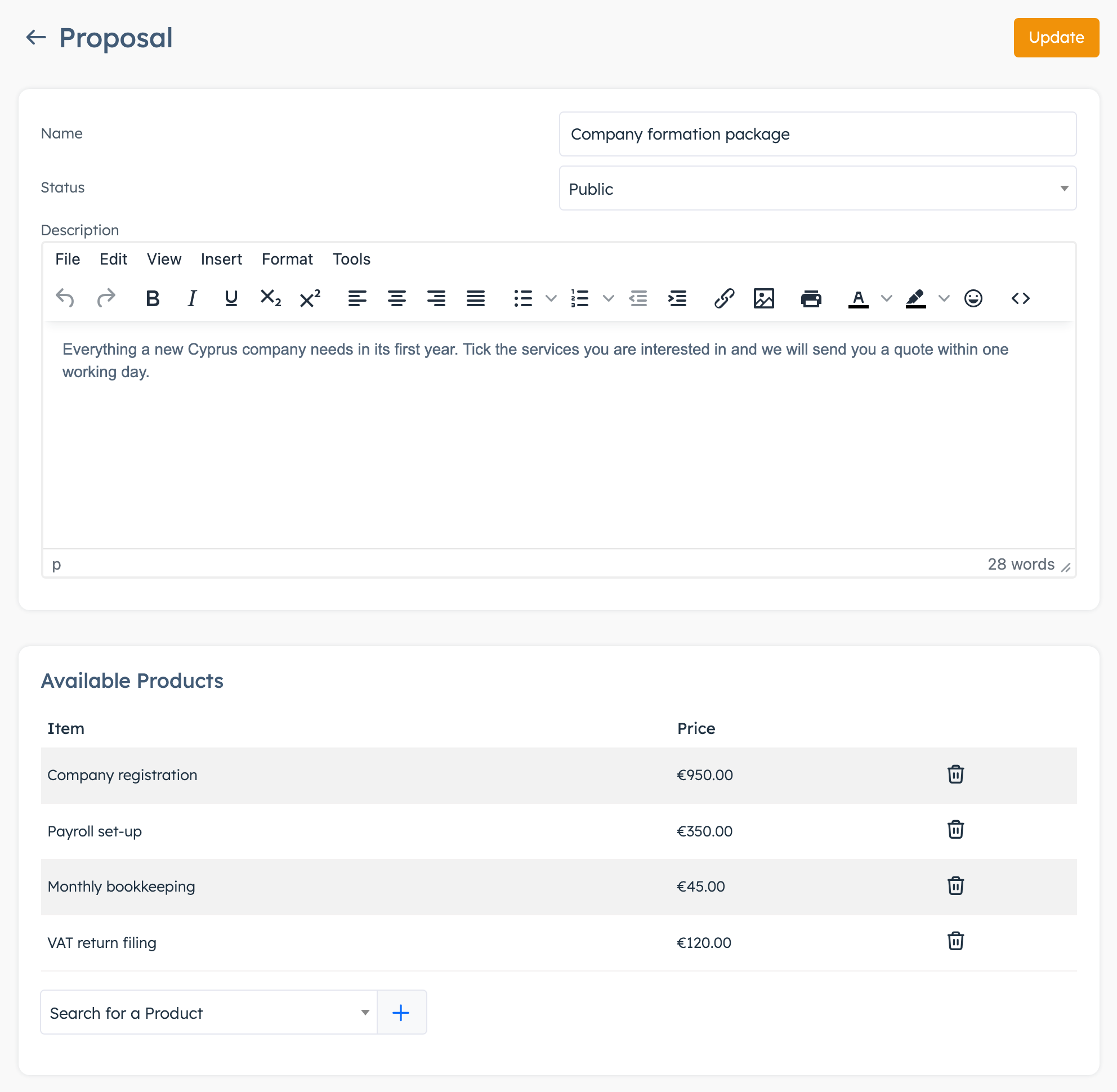
The prices come from your catalogue. When you change a product's price in Products, the smart proposal shows the new price. Admin Note is for your team only.
In the list, the Duplicate icon makes a copy with "Dup" added to the name, as a Draft.
Build a proposal with Quick Proposal#
- Click + in the top bar and choose Proposal, or open Smart Proposal under the tools in the right sidebar. You won't find it while you're on a proposals page.
- In Select Smart Proposal, pick a smart proposal.
- Click the products you want. They appear under New Proposal Items with a Total.
- Click Next.
- In Issue To, choose Organization, User or Contact and pick the customer.
- Click Create Proposal. You see Proposal Created with the new proposal's ID.
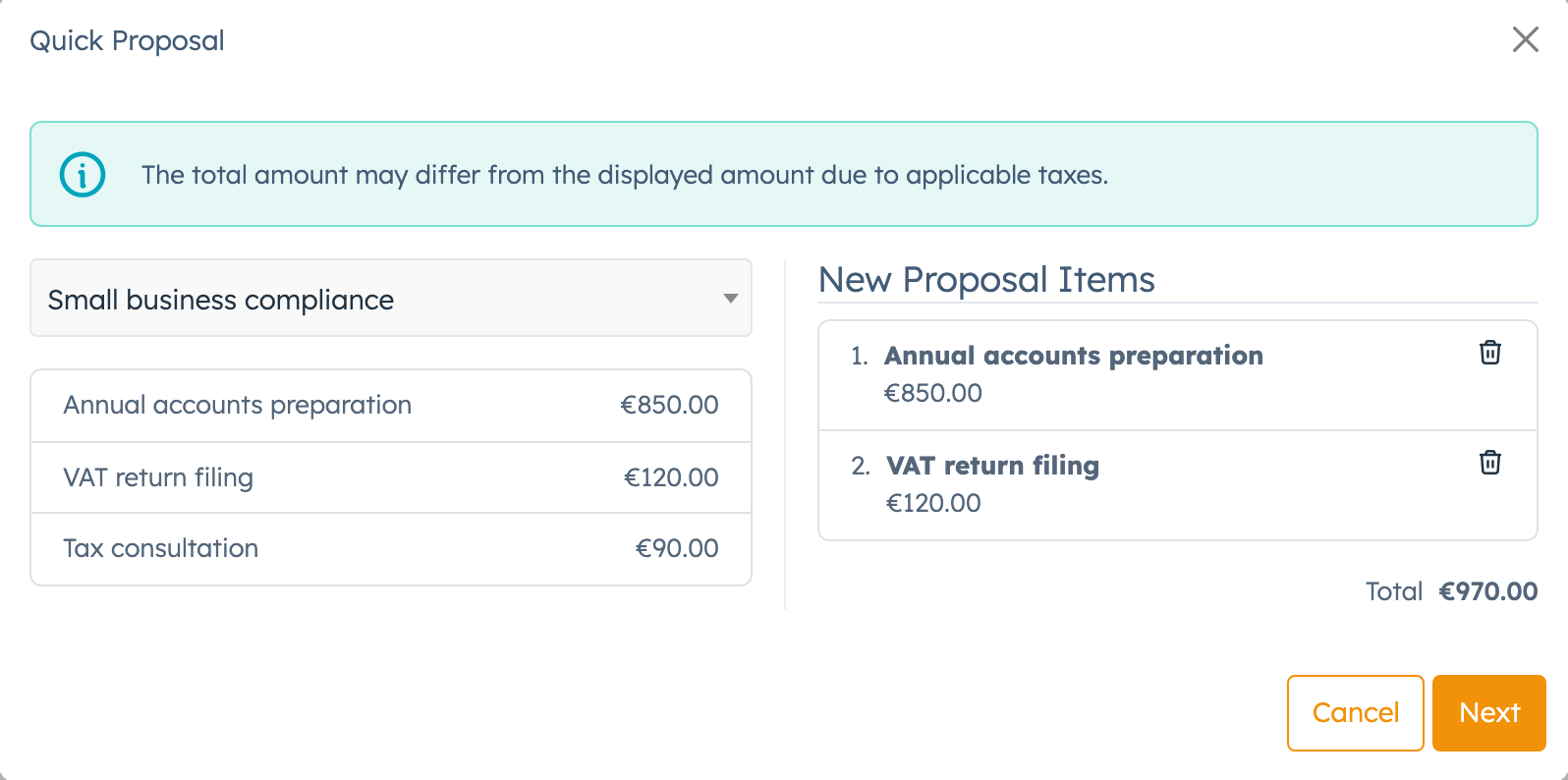
The total in this window leaves out tax, so the final amount can differ. The new proposal is a Draft. Open it from CRM > Proposals, type your proposal number, click Calculate Taxes and check the details before you send it. See Create a proposal.
Put a request form on your website#
The form works only for a Public smart proposal.
- In the Smart Proposals list, click the Generate Widget icon on the row and confirm. The icon only shows on Public smart proposals. You see Proposal widget created.
- Open Proposals Widgets in the CRM settings menu.
- Tick Active on the new widget. New widgets start inactive and show nothing on your website.
- Click Copy Code.
- Send the code to whoever looks after your website, to paste on the page where the form should appear.
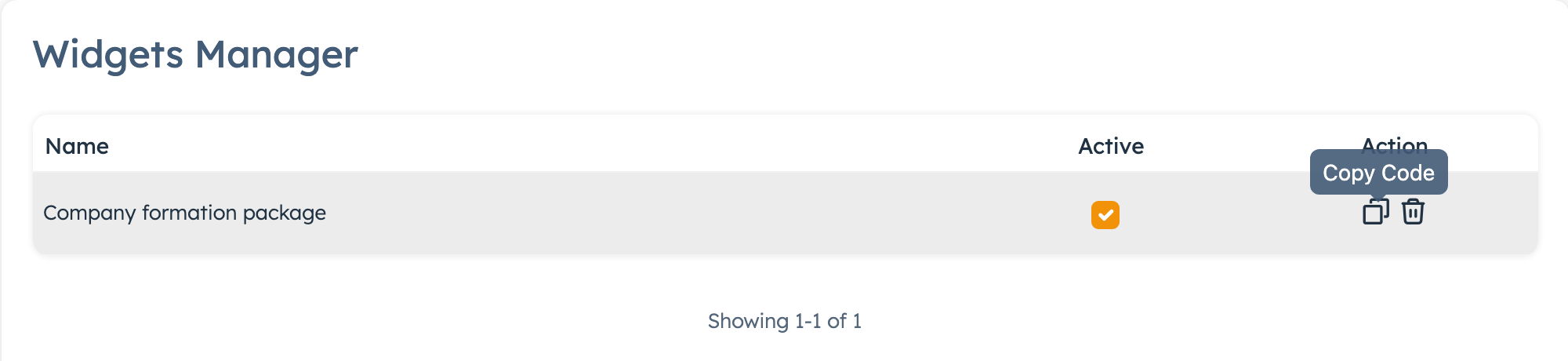
The widget takes the smart proposal's name when you generate it. If you change the smart proposal's status away from Public, or untick Active, the form stops showing on your website. Each smart proposal can have one widget.
What the visitor sees#
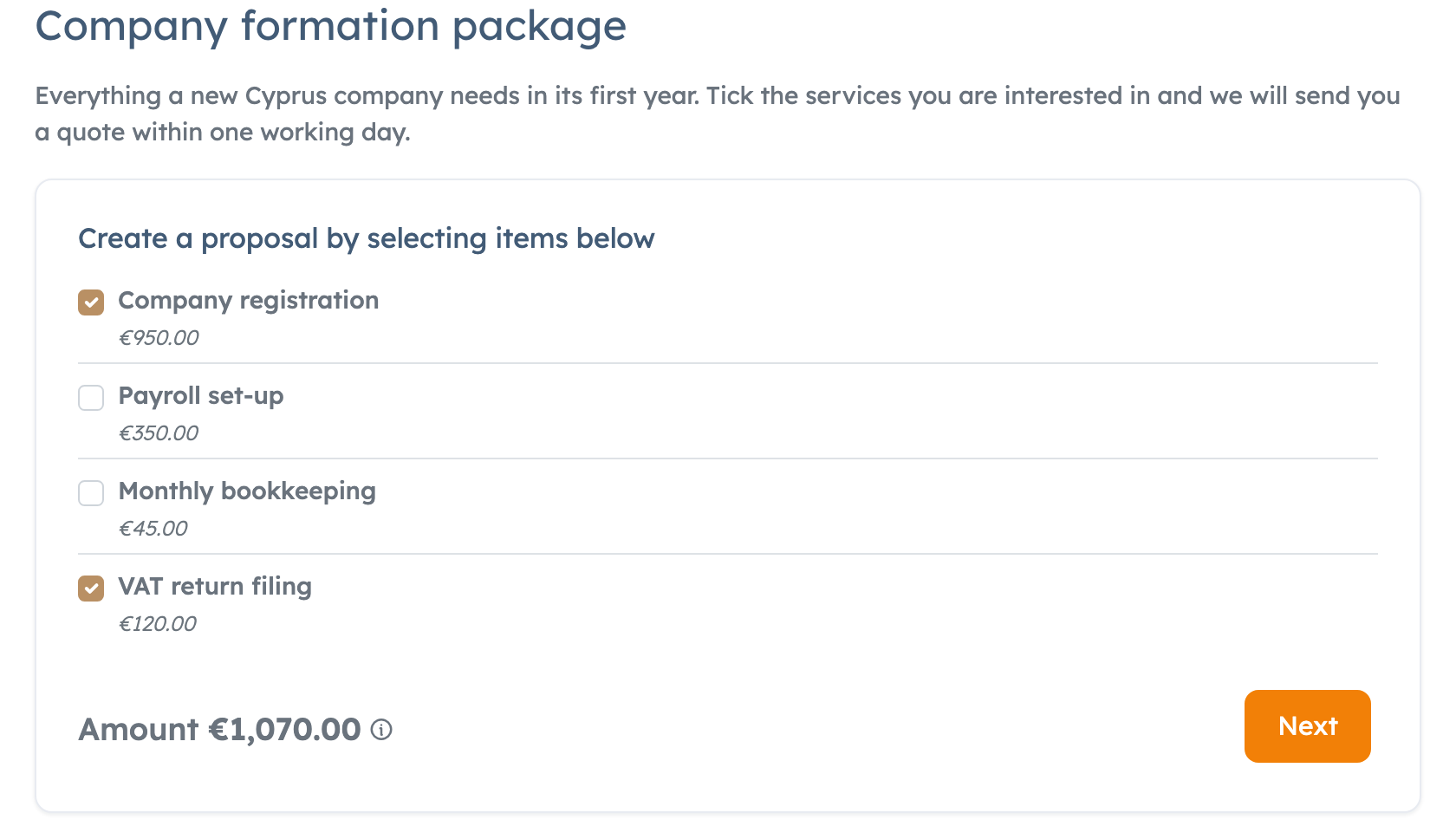
- The visitor ticks the items they want. The Amount adds up their catalogue prices, without tax.
- They click Next, fill in First Name, Last Name, Email Address and an optional Custom Message.
- They click Create Proposal and see "Proposal Submitted. We'll be in touch with you soon."
After a visitor sends a request#
The system creates a Draft proposal with the ticked products at catalogue prices. It appears in CRM > Proposals numbered DRAFT- followed by a number. The visitor's message goes into the proposal's Admin Note.
The system looks up the visitor's email address:
- It matches a customer account that belongs to an organisation: the system links the proposal to one of that customer's organisations.
- It matches one of your leads and no customer account: the system links the proposal to the lead.
- Anything else: the proposal carries the name and email the visitor typed.
Staff who ticked Smart Proposal Requests under Notifications in their admin profile get an email with a link to the new proposal. The visitor gets no email.
To answer the request:
- Open the new proposal from CRM > Proposals.
- Check Issue To and the billing details. If the customer has several organisations, make sure the system picked the right one.
- Type your proposal number, add or change lines and click Calculate Taxes.
- Set Status to Proposed and click Save.
- Click Copy Viewkey and send the private link to the visitor. It opens without a login.
If the proposal is for a lead and the customer accepts, turn the lead into an organisation first, see Turn a lead into an organisation. The proposal moves to the new organisation. Then click Create Invoice on the proposal page. See Turn a proposal into an invoice.
Good to know#
- Quick Proposal lists only Private and Public smart proposals. With none of those, it asks you to create one first.
- A request doesn't create a new lead or customer. For a visitor you don't know yet, the proposal only carries the name and email they typed.