
Follow deals through your pipeline
Track each possible sale on a board, move it from stage to stage and mark it Won or Lost.
A deal is a piece of work you hope to win from a contact, for example "Annual audit 2026 for Harbour Marine Services Ltd". You keep your deals on a board with one column per step of your sales process, drag them along as things move, and mark them Won or Lost at the end. Open it from CRM > Deals. You need the Deals permission.
Key ideas#
| Term | What it means |
|---|---|
| Pipeline | Your sales process, shown as a board of columns. You can have more than one, for example "New clients" and "Renewals". |
| Stage | One column of a pipeline, such as "Proposal sent" or "Negotiation". Each deal sits in one stage. |
| Amount | What the deal is worth. You type it, or the CRM adds up the products you attach to the deal. |
| Probability | A percentage set on each stage: how likely a deal at that stage is to close. The board uses it to show a Weighted value under each column. |
| Status | Open, Won or Lost. Status is separate from the stage. A deal you mark Won stays in the column it was in. |
| Rotten deal | An open deal that has sat in the same stage too long with no new activity. Its card turns orange with a Rotten badge. |
Find your deals#
The Deals page opens on the board. Each column shows its deals as cards, with a Total of their amounts and the Weighted total (Total multiplied by the stage's probability) at the bottom.
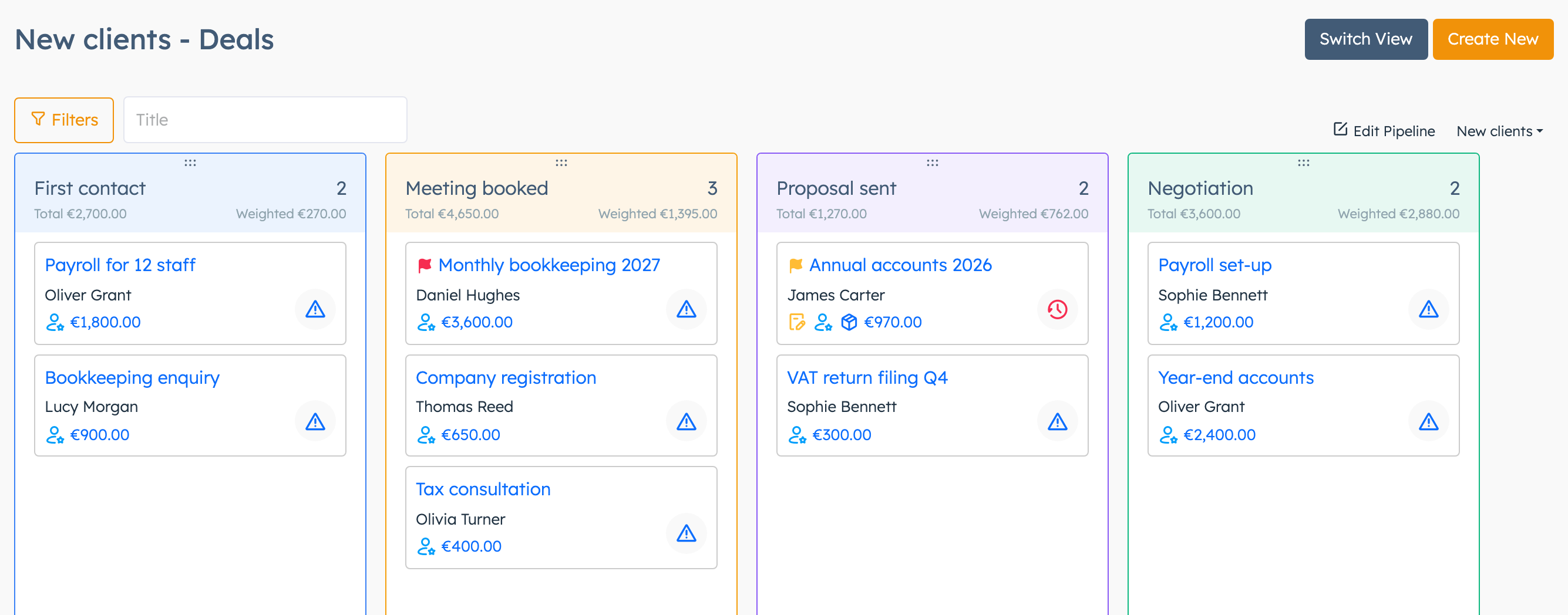
A card shows the title, contact, amount and a flag for Medium (yellow) or High (red) priority. The icon on the right sums up the deal's activities: red means something is overdue, yellow means something is happening now, blue means something is coming up, and a triangle means nothing is planned. Click it to tick an activity as done or add a New Activity.
To switch pipeline, click the pipeline name at the top right.
To see the deals as a list you can sort, click Switch View. The table also shows each deal's Next Action (the next planned activity). Click Switch View again to go back to the board.
The page starts with two filters on: Manager is you and Status is Open. Colleagues' deals and Won or Lost deals stay hidden until you change them. Click Filters to add or change a filter, and Clear Filters to go back to the starting filters.
Create a deal#
- On the Deals page, click Create New. To start a deal in a given column, click the + strip at the bottom of that column instead.
- Type a Title.
- Pick the Contact. If the contact is new, choose Create New in the list, fill in a name or company and click Update.
- Pick the Stage.
- Type the Amount if you know it, and add Tags if your firm uses them.
- Click Create.
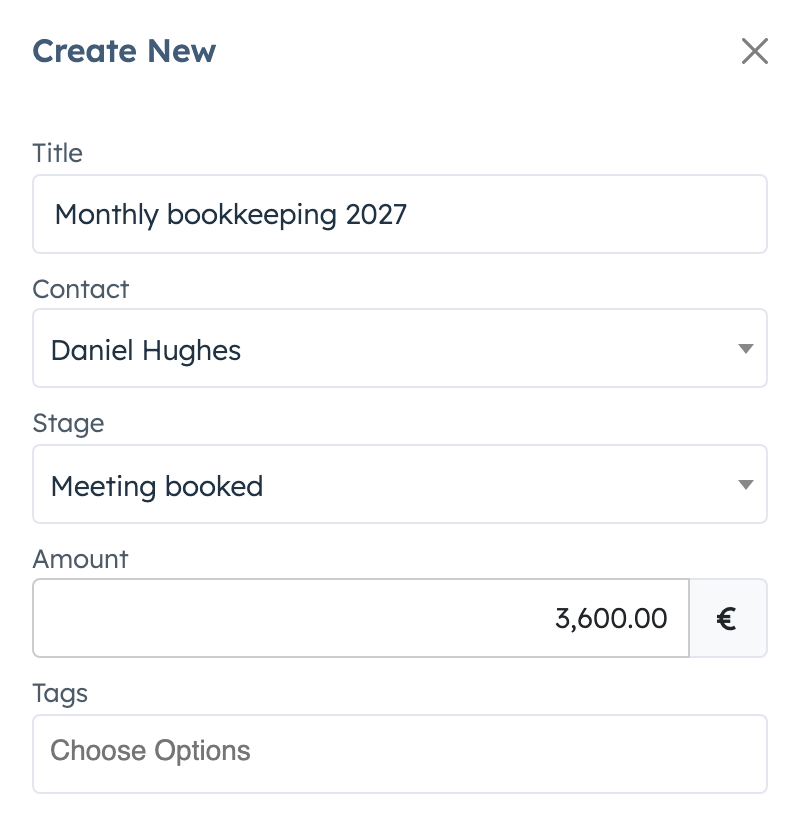
The deal's manager is the contact's manager. If the contact has no manager, it's you.
You can also start a deal from a contact's Deals tab. See Contacts.
Move a deal to another stage#
Drag the card to another column on the board. The CRM saves the move straight away.
Or open the deal and click a stage in the bar across the top of the page.
Mark a deal Won or Lost#
- Open the deal.
- In Deal Info, change Status to Won or Lost.
The deal leaves your board, which shows only Open deals until you change the Status filter. To see it again, set that filter to Won, Lost or Any.
To change several deals at once, click Switch View, tick the deals in the table and click Update Status. Pick the status, click Update and confirm.
Marking a deal Won doesn't create a proposal or invoice. See Proposals and Invoices.
Work on a deal#
Click a deal's title to open its page.
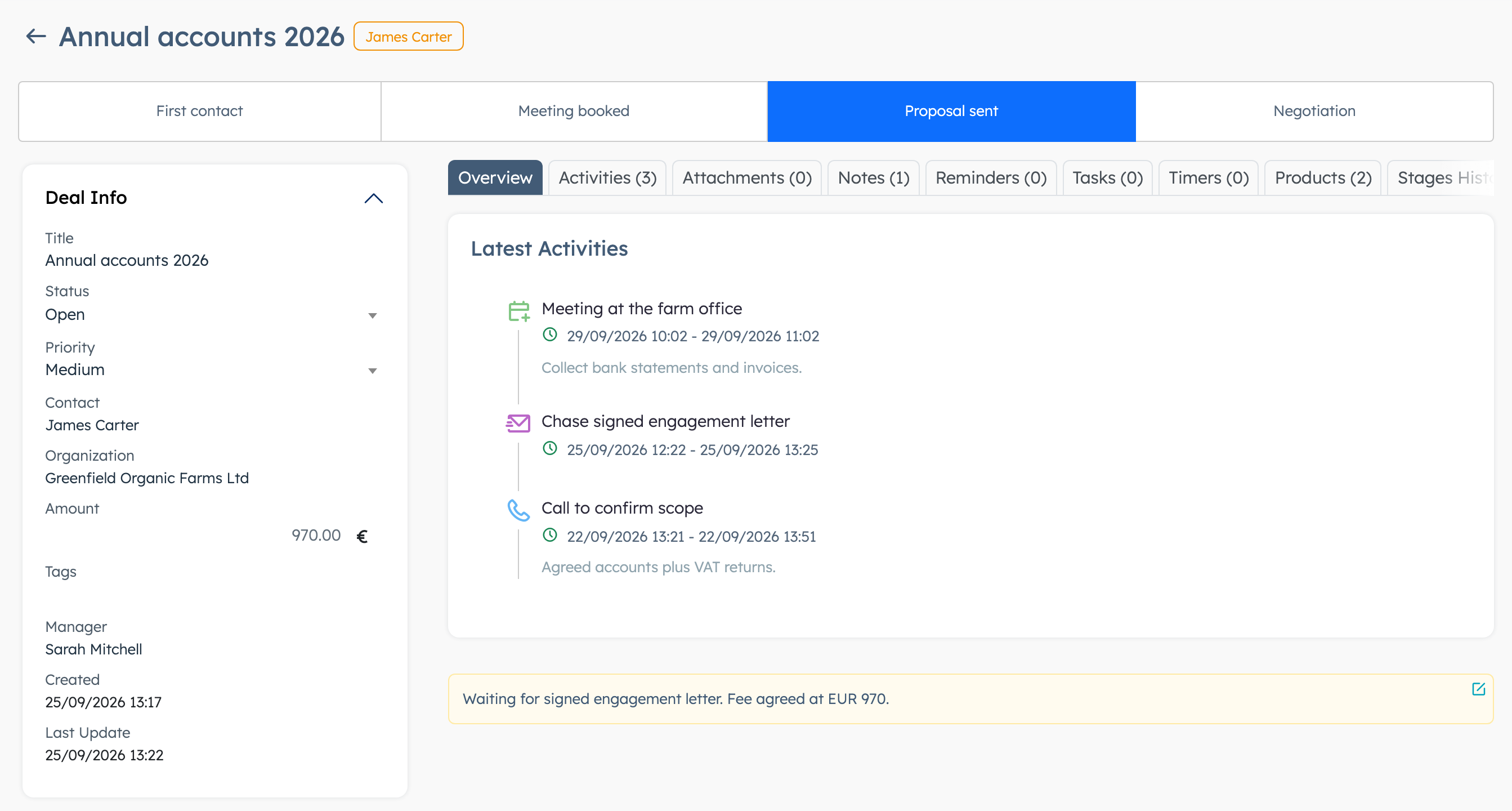
On the left, Deal Info holds the title, status, priority, contact, organisation, amount, tags and manager. Each field saves as soon as you change it. There is no Save button. Below it, Participants lets you add other contacts to the deal. The deal then shows on their Deals tab too. Participants don't get any message.
The tabs on the right:
| Tab | Use it for |
|---|---|
| Overview | The latest activities and the Scratch Pad, one short note that also shows on the board card. |
| Activities | Calls, meetings and tasks for this deal. See Activities. |
| Attachments | Upload files, such as a signed engagement letter. |
| Notes | Longer notes with a title. |
| Reminders | Remind yourself on a date, by email. |
| Tasks and Timers | Create tasks linked to the deal and time your work on it. |
| Products | Attach products or services. The Amount becomes the total of their list prices, worked out each time you add or remove a product, and you can't type it any more. Remove the last product to type it again. |
| Stages History | Each stage the deal went through, with dates and how long it stayed. |
| SMS | Send a text message to the contact's mobile number. |
| Log | Who changed what on the deal, and when. |
You may also see Email and Tickets tabs if your firm uses those parts of the system.
Rotten deals#
Each stage can have a number of days, set by whoever manages your pipelines. An open deal goes rotten when it has stayed in that stage longer than that number of days and nobody has added an activity to it in that time. Its card turns orange with a Rotten badge.
To clear it, log an activity of any type on the deal, move the deal to another stage, or mark it Won or Lost.
The deal's manager gets an email each time one of their deals goes rotten. For that, Enable The CRM Plugin must be on in the CRM settings (see Settings), and the manager must tick Rotten Deals in their own profile:
- Click your name in the sidebar and choose Profile.
- Open the Notifications tab.
- In the CRM section, tick Rotten Deals.
- Click Save.
If a deal has no manager, the system emails nobody about it. The orange card shows on the board either way.
Set up pipelines and stages#
You need the Manage Pipelines permission. Without it you don't see the buttons below.
Create a pipeline#
- On the board, click the pipeline name at the top right and choose New Pipeline. On an empty system, click Create New.
- Type a title, for example "New clients".
- Click Create.
The new pipeline opens with three stages called "Stage #1", "Stage #2" and "Stage #3". Rename them and set their options next.
Edit the stages#
- On the board, click Edit Pipeline.
- Change each stage's Title, Color, Rotter Days and Probability (%). The table below explains the last two.
- To add a stage, click Add Stage and fill in its row. Set its Probability (%) straight away: a new row starts at 0, which makes its Weighted total 0.
- Click Update.
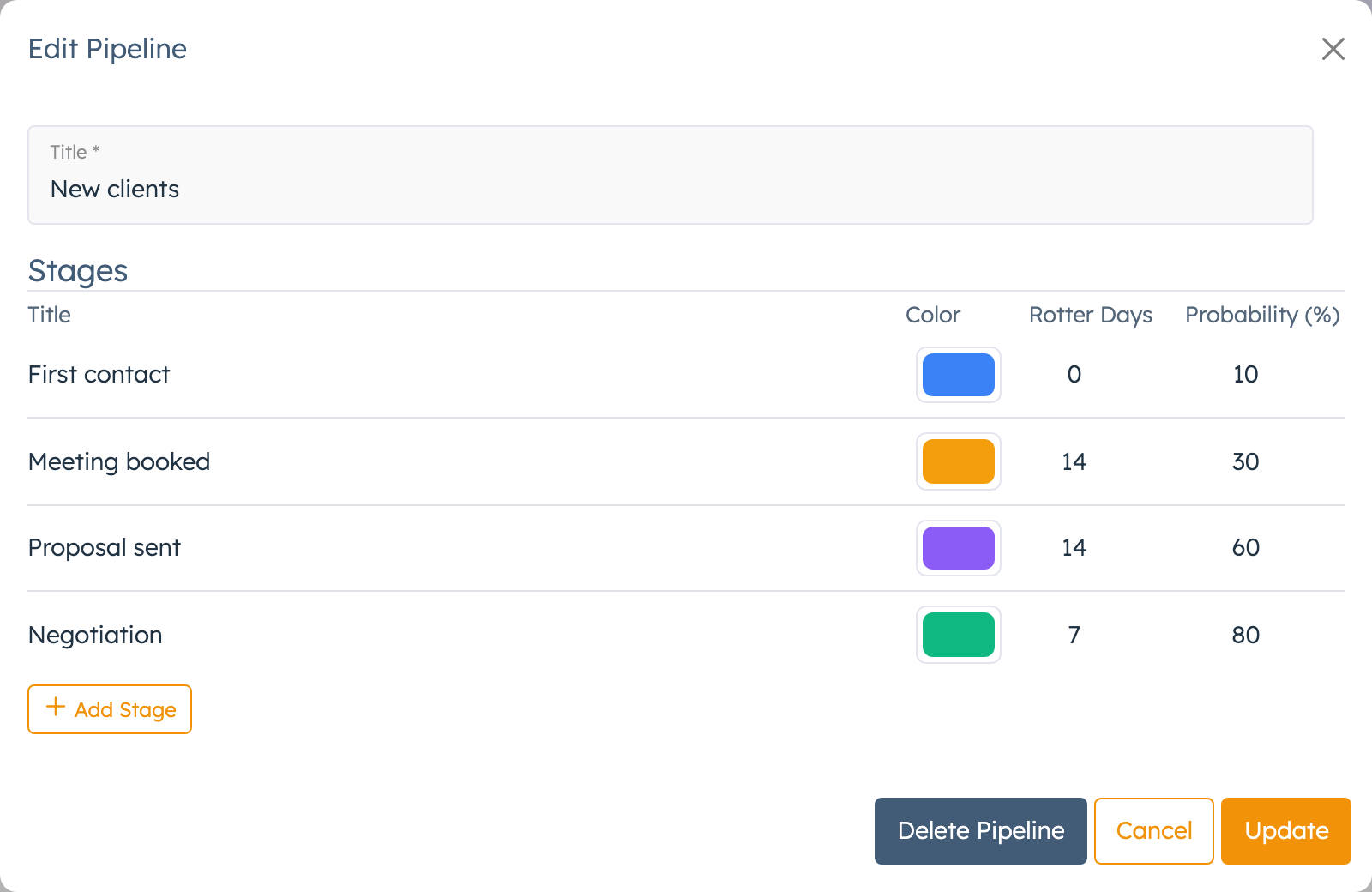
| Setting | What it does | When to change it |
|---|---|---|
| Rotter Days | Days a deal can stay in this stage with no new activity before it counts as rotten. 0 means deals in this stage never go rotten. | Set it on stages where deals tend to stall, for example 14 days on "Proposal sent". |
| Probability (%) | How likely a deal in this stage is to close. Used only for the column's Weighted total. | Set it for every stage, rising towards the last one. |
Rename, reorder or delete a stage#
Do these on the board:
- Rename: double-click the column title, or use the column's ... menu > Rename.
- Reorder: drag the column by the coloured strip on its left side.
- Delete: column ... menu > Delete. If the stage is empty, click Yes. If it still has deals (any status, anyone's), click Transfer & Delete, choose the New Stage for those deals and click Update.
Delete a pipeline#
- On the board, open the pipeline and click Edit Pipeline.
- Click Delete Pipeline.
- If the pipeline has no deals, click Yes and you're done. If it has deals, click Transfer Deals & Delete.
- Choose the New Pipeline and click Update.
The CRM adds a first column called "Deals from" plus the old pipeline's name to the pipeline you chose, and moves the deals there.
Clear Deals & Delete, next to Transfer Deals & Delete, deletes every deal in the pipeline with its files, notes and activities. That includes Won and Lost deals and your colleagues' deals. It doesn't ask a second time and you can't undo it.
Change the order of pipelines#
Click the pipeline name on the board and choose Manage Pipelines. This opens the Pipelines Manager. Drag the rows to change the order. The order sets the pipeline list on the board, and the board opens on the first pipeline until you pick another.
Don't use the bin on the Pipelines Manager for a pipeline that still has deals. Its deals stay in the system but disappear from the board, the table and contact pages. Delete pipelines from the board as described in Delete a pipeline.
Good to know#
- Moving a deal into a column called "Won" doesn't change its status. Set Status yourself.
- A new deal you create for a contact managed by a colleague belongs to that colleague, so it doesn't show on your board until you set Manager to All or to them.
- The Weighted total uses the stage's probability. You can't set a probability on a single deal.
- Deleting a deal also deletes its files, notes and activities.