Set up your products and services
Keep one list of what your firm sells, so invoices and proposals fill in the price and VAT for you.
Your product list holds everything your firm sells: services billed by the hour, fixed-fee packages, licences or goods. When you add a product to an invoice or a proposal, the CRM fills in the name, description, price, VAT and unit for you. The list lives under CRM > Settings > Products, and you need the Products permission to open it.
Key ideas#
| Term | What it means |
|---|---|
| Product | One entry in your list. The CRM calls services "products" too. Give a service a unit such as Hours. |
| Unit | What you count in: hours, pieces, licences, users. |
| Product group | A folder that keeps related products together, for filtering and reports. |
| Copied into the line | When you add a product to a document, the CRM copies its details into that line. Changing the product later leaves your existing invoices and proposals as they were. |
Add a product#
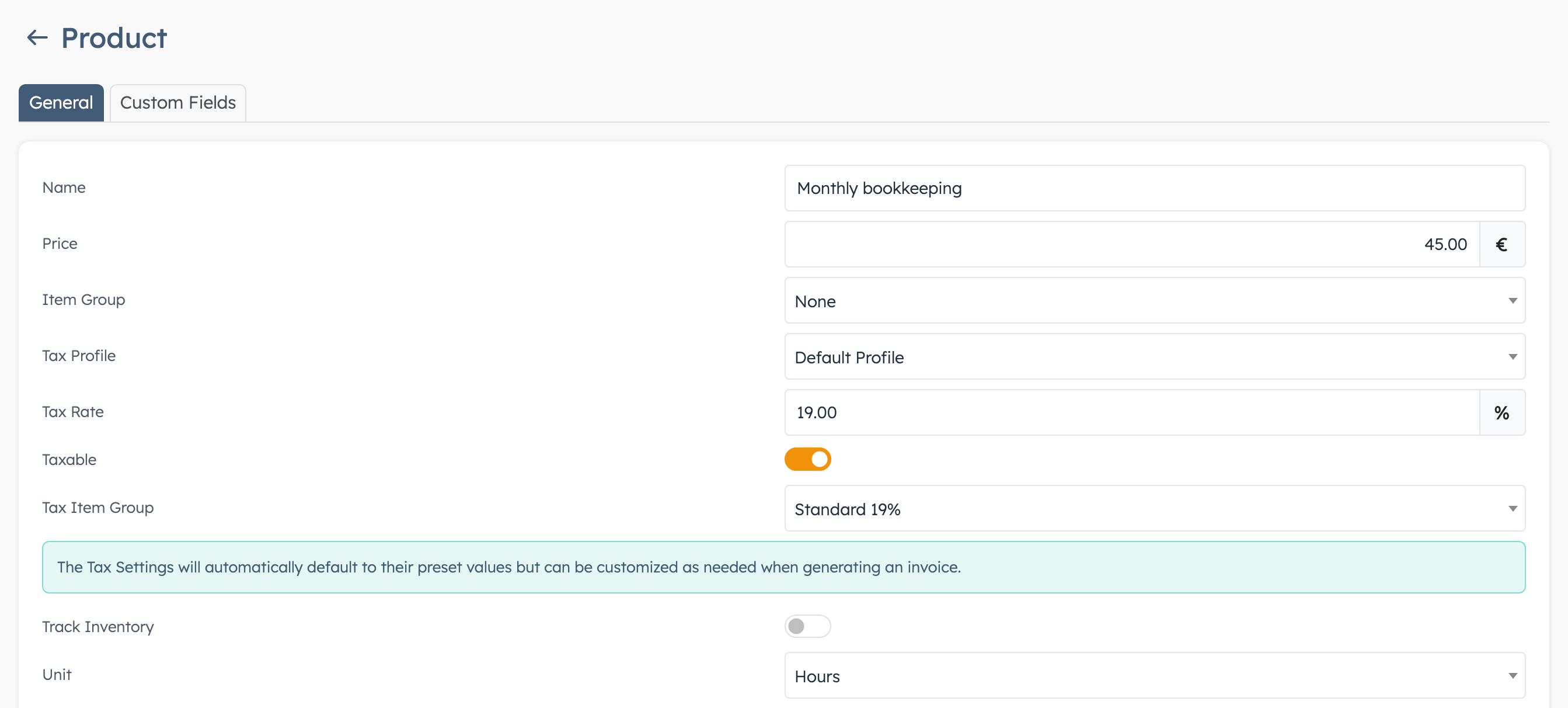
- Open CRM > Settings > Products and click Create Product.
- Type the Name and the Price. Use 0 for something you give free.
- Pick a Unit: Hours for time-based work, Pcs for goods, License or Users for software.
- Set the VAT fields (see the next section).
- Pick an Item Group if you use groups, and write a Description. The description goes onto document lines, so write it the way the customer should read it.
- Click Save. The message "Product created" appears.
The Unit list is fixed: Pcs, Hours, Kg, L, Km, Box, Pack, License, Unit, Users and SaaS. You can't add your own.
Set VAT on a product#
The VAT fields on the product are starting values. You can still change the VAT on each invoice line.
| Field | What to enter |
|---|---|
| Tax Profile | The tax setup the product belongs to. It decides which categories you can pick in Tax Item Group. Leave Default Profile unless your firm has more than one. |
| Taxable | Switch on if you charge VAT on this product. |
| Tax Rate | The VAT percentage, for example 19 for the standard Cyprus rate. Required when Taxable is on. |
| Tax Item Group | The VAT category inside the tax profile, for example standard or reduced. Calculate Taxes on an invoice or proposal gives the line the rate of this group. |
For a product with no VAT, keep Tax Rate at 0 and pick your "Zero rated" or "Exempt" group. You set up tax profiles and VAT categories in Taxes and VAT.
Group your products#
- Open CRM > Settings > Product Groups and click Create New.
- Type a Name. The Description is optional.
- Click Save.
- Open a product and pick the group in Item Group.
On the product page, pick Create New in the Item Group list to make a group without leaving the product.
Add your own product fields#
For extra details on products, such as an internal service code, your administrator adds fields in Custom Fields with Available for set to CRM Products. Each saved product then shows a Custom Fields tab. Fill in the values and click Update Fields. The Filters menu on the product list also gets one filter per custom field, except date and attachment fields.
Use products on invoices and proposals#
Invoices, proforma invoices, credit notes and proposals all use the same product search under the lines.
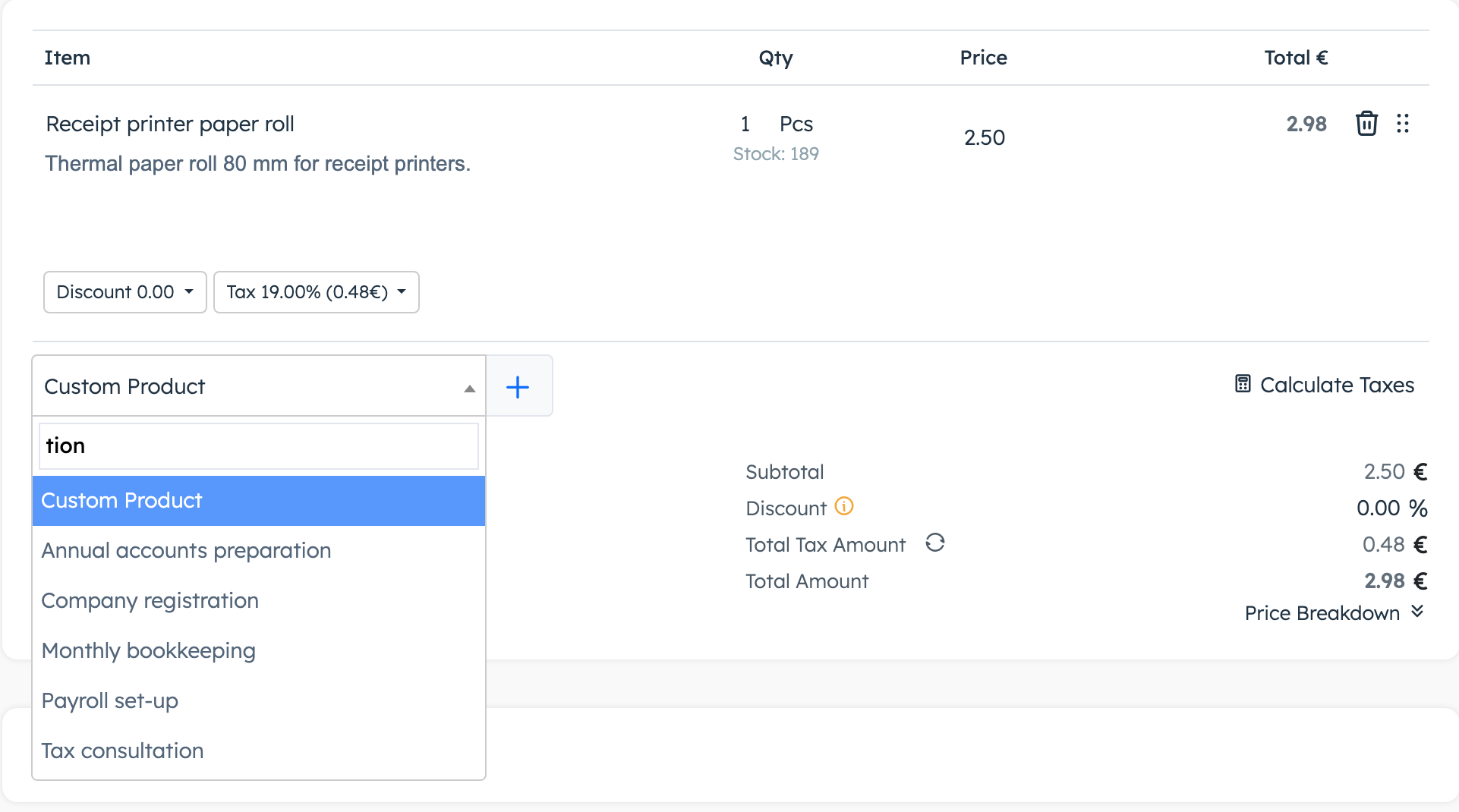
- Open the document and find the search box under the lines. It shows Custom Product until you type.
- Type part of the product's name, description or ID.
- Pick the product and click +. A new line appears with quantity 1 and the product's price and VAT.
- Change the quantity, price or text on the line if this job is different. Your product list stays as it is.
To add a blank line and type it yourself, leave Custom Product selected and click +.
On a deal, the Products section has its own rules. You add each product once, with no quantity or VAT, and the deal amount becomes the total of their list prices. The CRM works out that total when you add or remove a product. A later price change on the product leaves the deal amount as it was. See Deals.
Save a typed line as a product#
Turn a line you typed by hand into a product so you can reuse it.
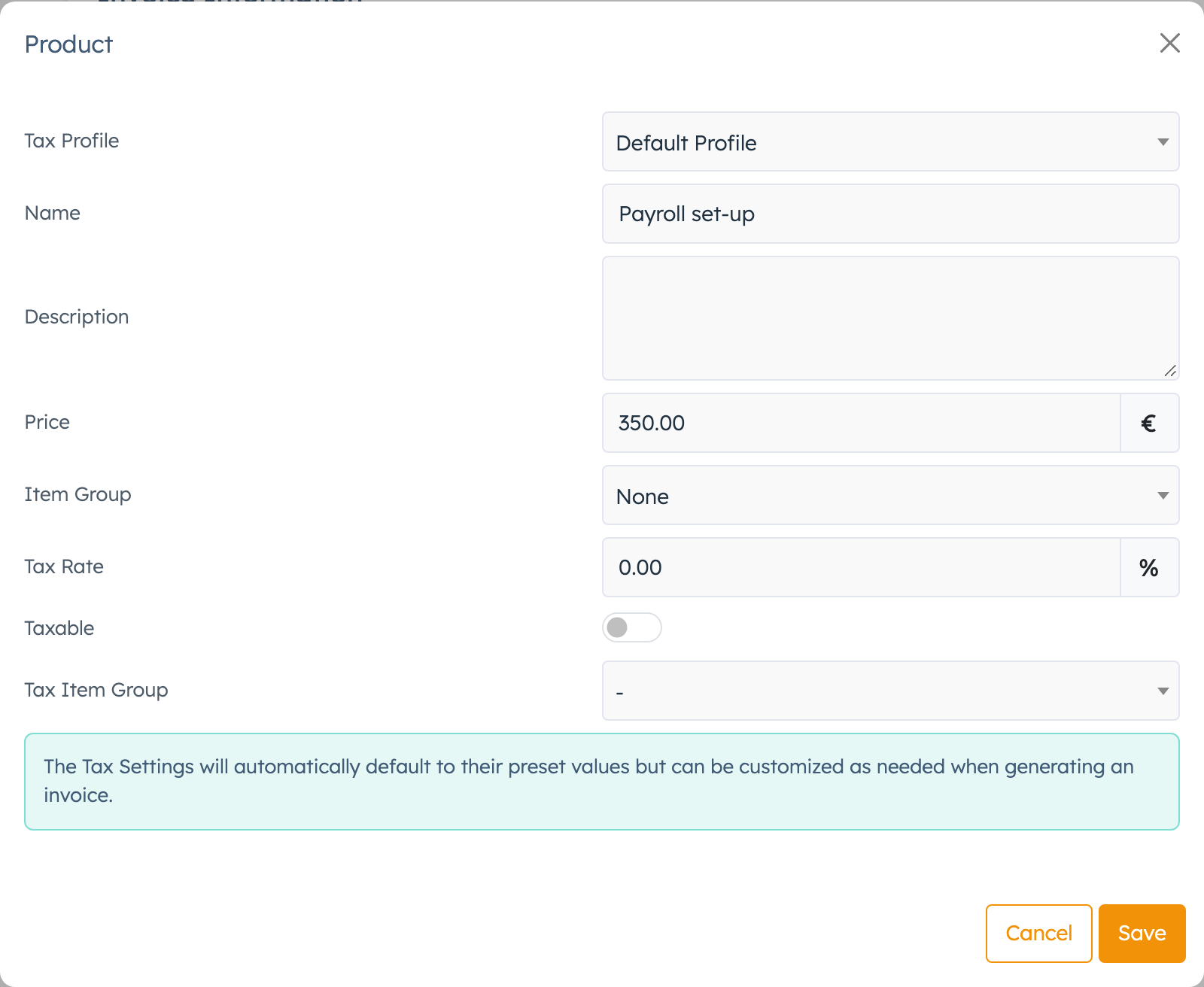
- On the line, click the save icon (Save to Products).
- Check the fields in the Product pop-up and click Save. The message "Item Saved" appears and the CRM links the line to the new product.
- Open the new product from CRM > Settings > Products and check the Unit.
The pop-up has no unit field, so the new product gets your default unit (Pcs unless someone changed Default Items Unit in CRM settings). For a service billed by the hour, change it to Hours and click Save.
Count stock on a product#
For goods you keep in stock, switch on Track Inventory on the product, type the current count in In Stock and click Save. The Stock column on the product list shows the count, in red below zero. Adding the product to an invoice, proforma or credit note lowers the count. The full rules are in Keep track of stock.
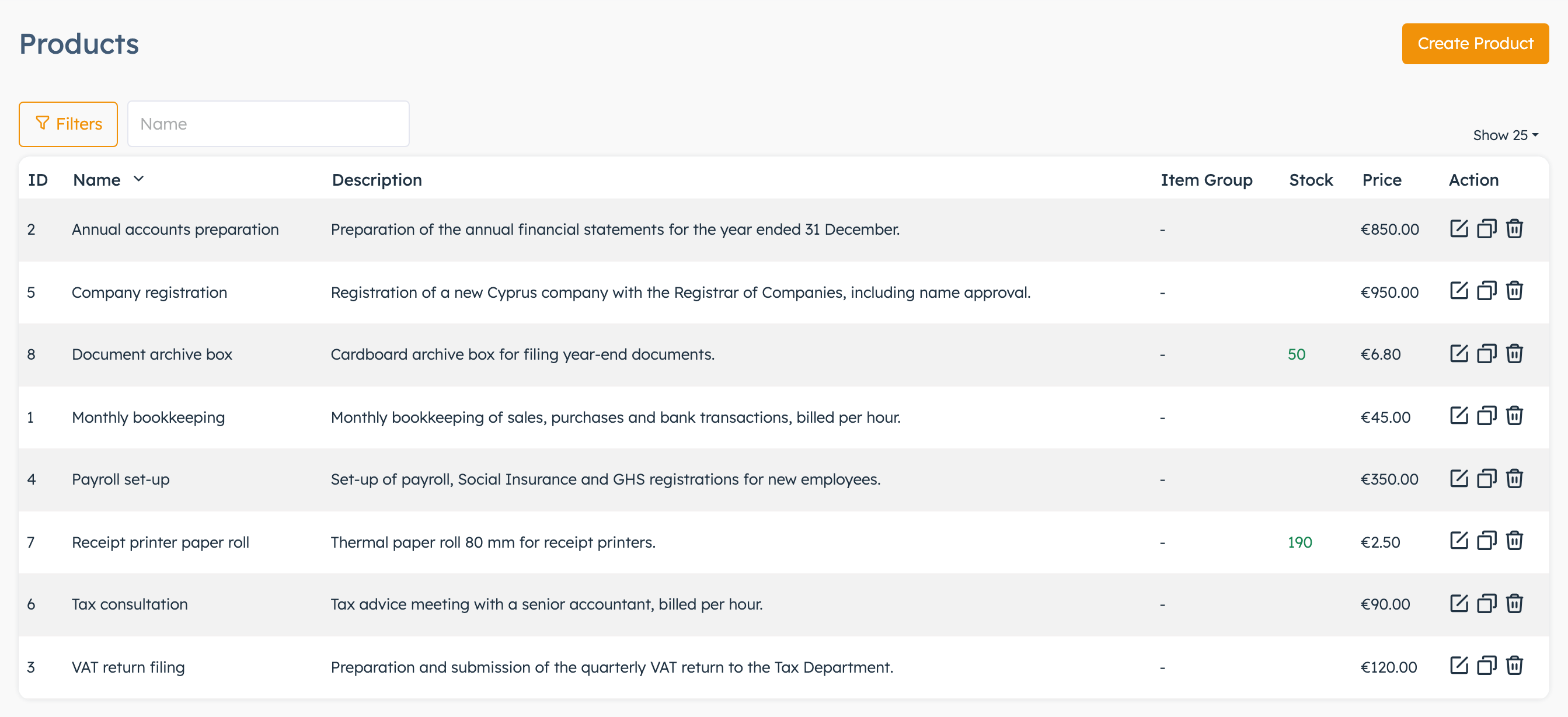
Export your product list#
The Products page has no export button. Use the Items report instead:
- Open Reports > CRM Reports and click Items.
- Pick an Item Group or Tax Profile if you want part of the list, and a Sorting.
- Click Export PDF, Print or Export CSV.
The report lists each product's name, stock and price, and can add the description and group. Only super admins can open CRM Reports, so ask one if the page doesn't open for you.
Settings explained#
| Setting | What it does | When to change it |
|---|---|---|
| Default Items Unit | The unit given to products made with Save to Products, and to document lines that have no unit. Default Pcs. The Create Product form starts on Pcs whatever this setting says. | Set it to Hours if most of what you sell is time. It sits on the Default tab, see CRM settings. |
Good to know#
- Duplicate on the product list makes "
(Copy)" with the same price, VAT, group, unit and stock count. Custom field values stay behind. Fix In Stock on the copy if it tracks stock. - Deleting a product leaves old invoices and proposals as they were. The product drops off deals and warehouse lists.
- Deleting a product group keeps its products and clears their Item Group, even though the warning says the products go too.
- You can bring online shop orders into the CRM as invoices, see Invoices.